3. My Sites Overview


This document is an overview of the features available in your Hub for managing multiple WordPress websites from one place.
The Hub makes it easy to manage, view, and configure:
- Plugin, theme, and core updates
- Hosting
- Security settings
- Performance
- SEO
- Backups
- Uptime monitoring
- Analytics
- Reports
- Preset plugin configurations
If you haven’t set up your WPMU DEV account yet, visit the Hub page, where you can explore the features and see pricing packages.
Already a member? Visit your Hub dashboard to get started.
3.1 Getting Started
Copy chapter anchor to clipboardIf you don’t yet have any sites in The Hub, see the Adding a site to The Hub documentation to learn how to connect or create sites.
Before we get into the details of how you can manage your sites in The Hub, let’s touch base on some of the features available in The Hub itself. The main menu bar at the top allows you to navigate between the different modules:
- Sites – View and manage all sites in your Hub (covered in this document)
- Unlimited Hosting – Create your own unlimited hosting servers with as many live and staging sites as you want on each one.
- Dedicated Hosting – Everything you need to create or migrate sites on our dedicated hosting platform.
- Plugins – Install and manage any plugins on any or all of your sites.
- Domains – Purchase, transfer & connect domains and manage DNS for all of them right in your Hub.
- Pro Email – Create professional, branded email accounts for you and your clients.
- Client Tools – Everything you need to effectively manage client activity in your Hub or your branded client portal.

You can also access several WPMU DEV resources, check out what’s new, view notifications, and manage your account.

Click on Expert Services to navigate to that page in your Hub. If you want to keep up with the latest news at WPMU DEV, click on the gift icon. You can also configure your Hub settings by clicking on the gear icon. That will trigger a dropdown menu with options to edit your Hub Preferences.

Click on your current language to access a list of available languages for the Hub. Select your new language and click Save.

Click Configure to open the Show & Hide Services window, which allows you to customize your Hub interface. Toggle individual features on or off to show or hide them in the Hub.

For example, if you hide the Hosting service, then the Hosting module will be removed from the main menu bar and all links and prompts to migrate to WPMU DEV hosting will be hidden.
These settings only affect your own Hub interface, and do not affect team members or clients that you invite to join your Hub. For information on controlling team member and client access to the Hub, see our Team & Client Role Customization documentation.
To manage your account settings, click on your account profile avatar.

In the rest of this document, we will explore the layout and features available for connected websites.
3.2 My Sites
Copy chapter anchor to clipboardThe My Sites screen is your Hub Overview. The default Grid view lists all of your websites with a thumbnail of the home page for quickly visualizing all of your sites and sites that have actions waiting to be implemented.
You can switch to a List view if you prefer by clicking the toggle at the far right of the menu. See the Grid and List View chapter below for more info.
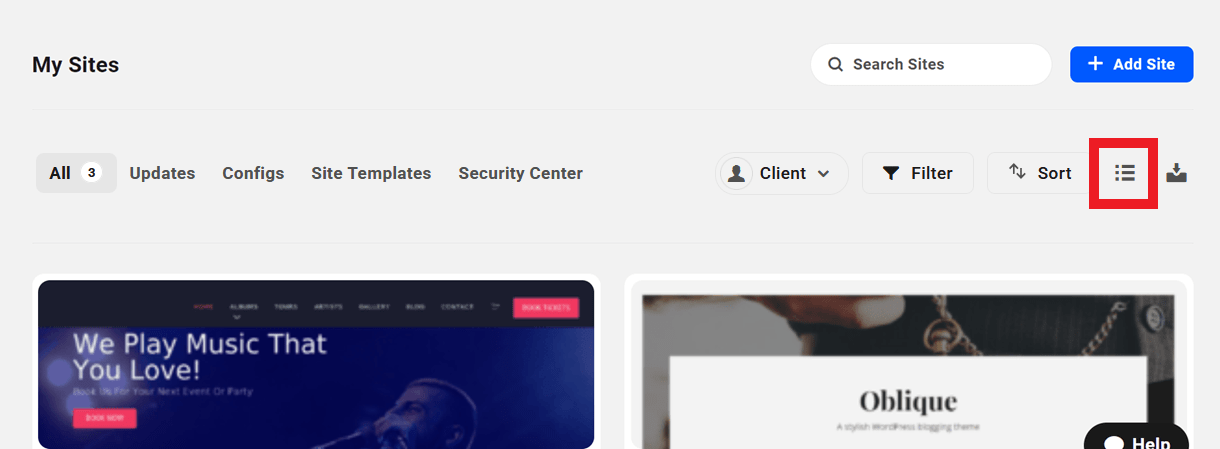
Use the Search field at top-right to quickly locate any site. Just start typing and your Hub will refresh automatically to show the results that match your search.

If you have more than 50 sites connected to the Hub, the pagination feature will kick in at the bottom of the page. You can select how many sites should display per page (15, 25, 50, 75 or 100), and use the page numbers or left & right arrows to navigate between your site pages.

By default, The Hub displays all of your dedicated and unlimited hosting sites (including staging sites) under the All tab. You can filter and sort the display of sites in your Hub in multiple ways.
Click the Updates tab to display only those sites that have updates available. See the Updates chapter below for more information.

Use the Client filter to display only sites linked to a selected client.

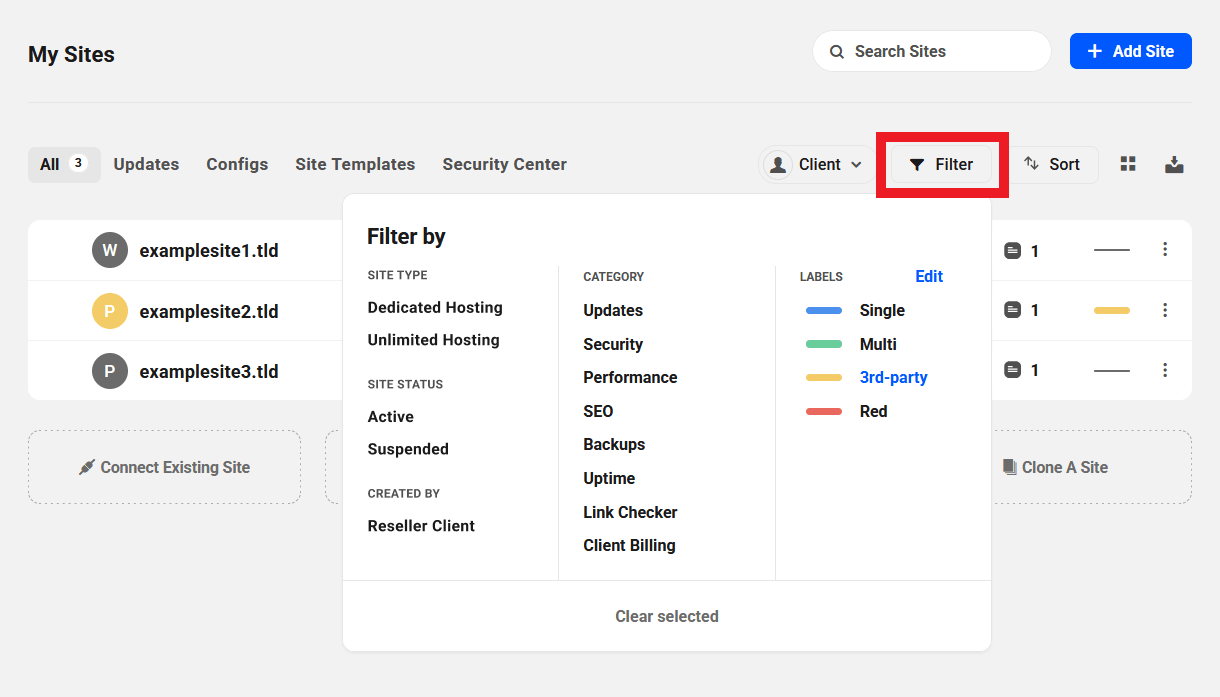
Click the Filters button to display only sites that match your selected criteria. See the Filters chapter below for details on the options available.
Use the Sort filter at top-right to display sites in ascending or descending alphabetical order or by the date when the site was connected to the Hub.

- Recently added – This puts the sites in order of when it was added to the Hub with the most recently added sites at the top.
- A-Z – List your sites domain names in alphabetical order.
- Z-A – Puts your sites in reverse alphabetical order.
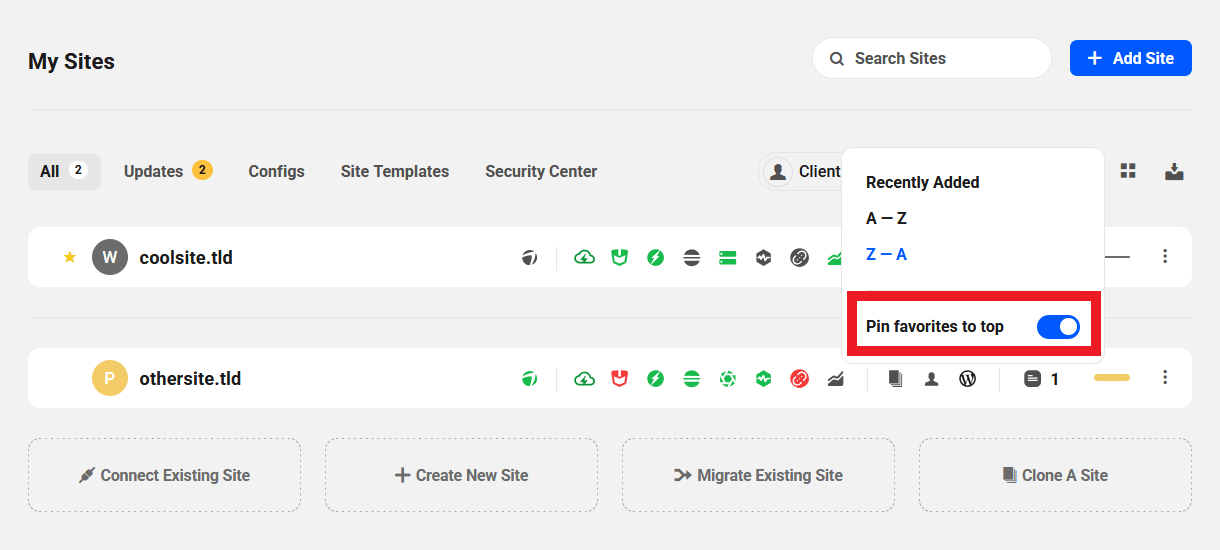
- Pin favorites to top – See the Favoriting a Website chapter below for more on this feature.
The other tabs you see at the top-left – Updates, Configs, Site Templates & Security Center – are powerful additional Hub features to help you better manage your sites, and are each covered in separate chapters below.
- Updates – Enables you to filter your sites by which have plugin/theme updates available, and bulk update all or only a few.
- Configs – Enables you to create preset configurations for any of the connected Hub plugins/services, and apply them to any/all of your sites in a couple of clicks.
- Site Templates – Site templates enable you to instantly create content-ready sites without having to build everything from scratch.
- Security Center – The Security Center is where you can activate and manage robust & automatic IP protection for any or all of your sites.
3.3 Updates
Copy chapter anchor to clipboardThe Updates section in the Hub enables you to manually manage all available updates for all your connected sites. The number in that tab indicates the total number of available updates (themes, plugins, core WordPress) for all your sites; if no number appears there, you have no updates, congrats!

The Updates section is divided into 4 tabbed sub-sections:
- Sites – displays the sites with available updates, and what they are.
- Plugins – displays just the plugins in need of updating, and on which sites they’re installed.
- Themes – displays just the themes in need of updating, and on which sites they’re installed.
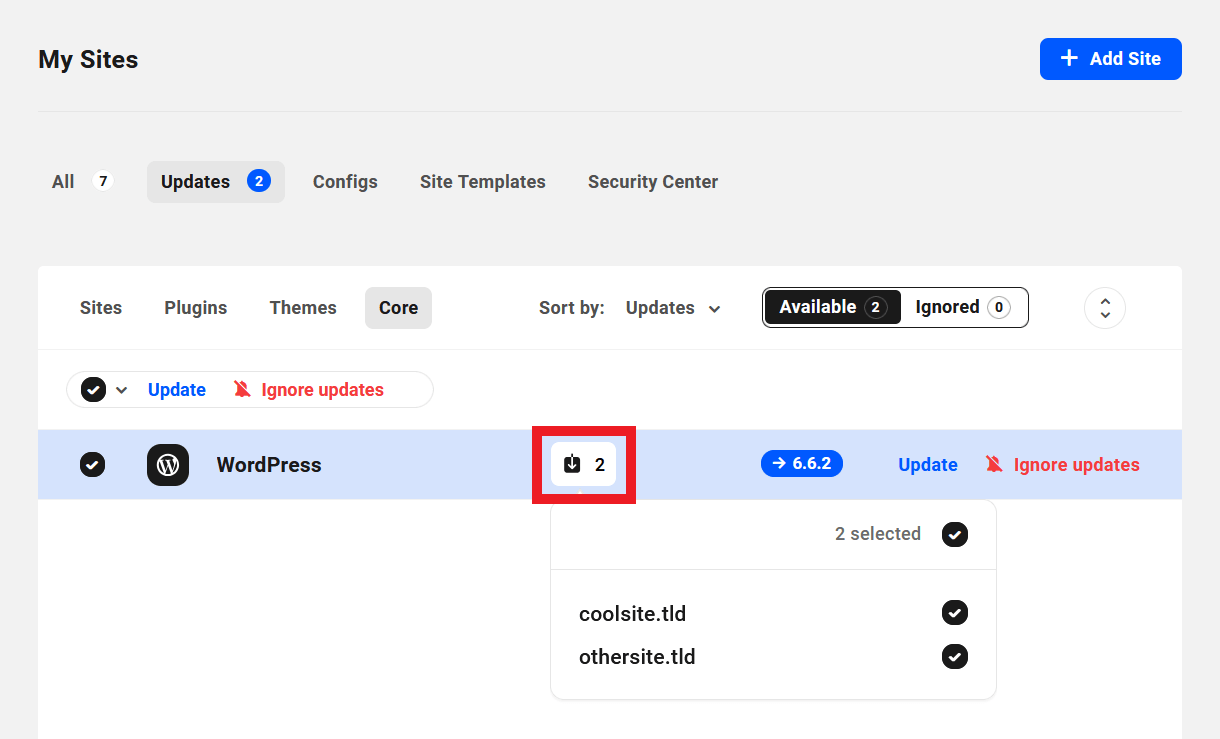
- Core – displays a list of sites with outdated versions of WordPress installed.
You can choose to update whatever you need to, however you want to. You can update everything by site, or update only selected plugins or themes on some sites, or update only core WordPress on selected sites.
Once you’ve selected whatever you want to update under any one tab, click the Update button at top-right of that tab to update everything you’ve selected under that tab.
Note that all available selections under each tab are selected by default. If you switch to a different tab and come back to the one you were on, it will again default to all options selected.
Ignoring Updates
You can also choose to ignore any selected updates by clicking Ignore updates.

This will stop any current and future updates from running until they are unignored, which can be done at any point by selecting the desired update under the Ignored tab and clicking Unignore updates. The Ignore feature also applies to Automate updates.
Navigate between unignored and ignored updates with the Available and Ignored tabs at the top of the module.

Note that ignoring updates in your Hub only affects updates from the Hub; it does not block any automated updates in your site’s wp-admin if you have that enabled.
Check out our blog on Ignoring Updates For WordPress Core, Plugins, and Themes for more information on why you might want to ignore updates on your site.
Sites
Under the Sites tab, click the checkboxes for any site to select/deselect that site, or use the bulk select option at top-left to select All, None, or only your Favorites.

You can use the Sort By filter at top-right just like on your My Sites screen to show the list of sites Alphabetically in ascending or descending order, by Recently Added or by Updates available.
Note that the link to Enable Automate will appear for any site listed that does not yet have Automate enabled on it. Click that link to be redirected to the Automate screen for that site to enable that feature if you wish. See the Automate & Updates doc for more info on that.
Click the Re-sync link to see the latest updates for a specific site. You can also re-sync the updates for all sites using the Re-sync updates link.

You can also click the WP Admin link to be taken to the wp-admin URL of that site in a new tab.
Hover your mouse over the number next to any site to see which plugins/themes need updating on that site. Click the checkboxes in the list to select/deselect any you want to include/exclude.
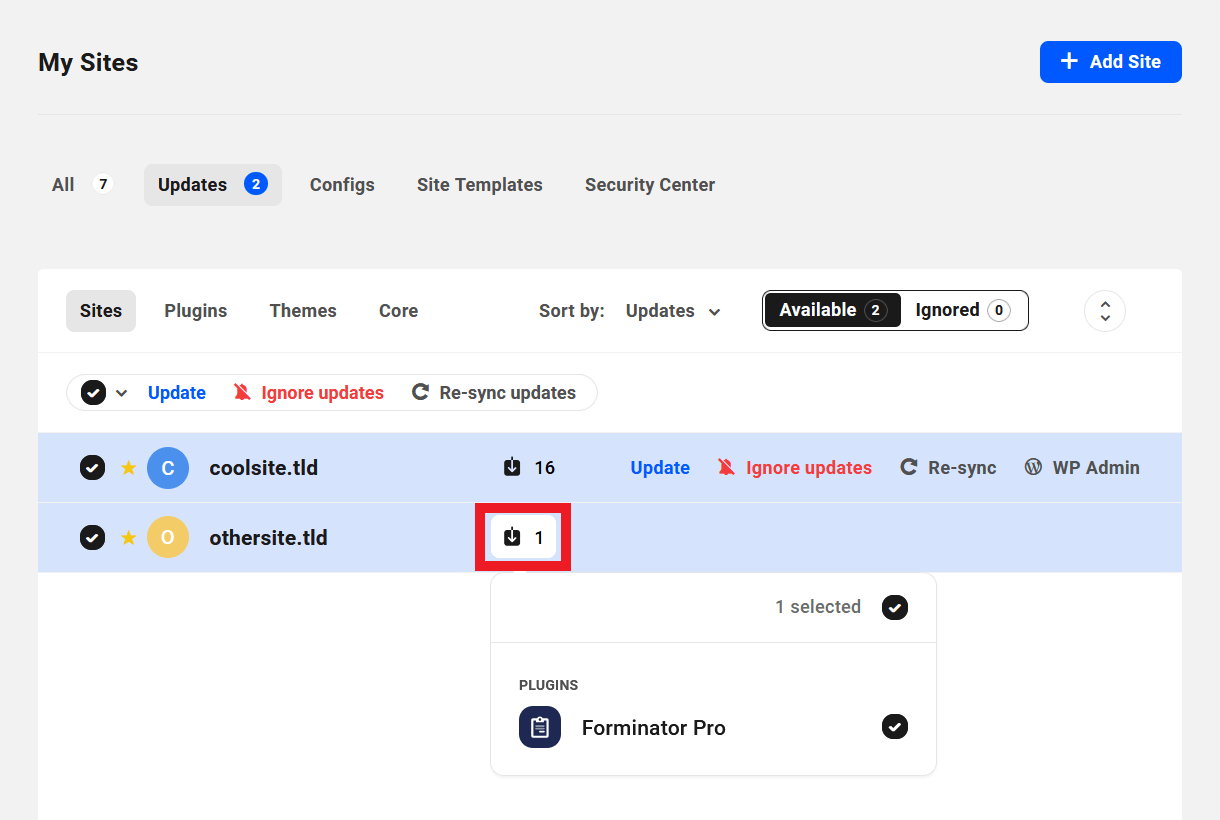
If you want to see all available updates for all sites, click the up/down arrow icon at the top to expand all sites. Here again, you can click the checkboxes to select/deselect any plugins/themes you want to include/exclude in your updates.

Plugins
Under the Plugins tab, the functionality is much the same as above. But here, instead of listing the sites that have updates available, the list shows the plugins with available updates.
Hover your mouse over the number next to any plugin to see which sites have this update available.
Check or uncheck any sites or plugins you want to include or exclude. Use the Sort By feature at top-right to sort the list of available updates Alphanumerically or by number of sites that have Updates available.

Themes
Under the Themes tab, the functionality is again much the same as above. But here the list shows the themes with available updates.
Hover your mouse over the number next to any theme to see which sites have this update available.
Check or uncheck any sites or themes you want to include or exclude. Use the Sort By feature at top-right to sort the list of available updates Alphanumerically or by number of sites that have Updates available.

Core
The functionality under the Core tab is much the same as above. But here, you’ll see a list of any sites that have outdated versions of WordPress running. Check or uncheck any site to include or exclude as needed.
3.4 Configs
Copy chapter anchor to clipboardThe Configs section in your Hub is where you can manage preset configurations of your WPMU DEV plugins and services, and apply those configurations to any or all of your sites in just a few clicks.

Default configs are available for the following plugins and services, and you can create your own custom configs for any of them as well:
- Defender
- Smush
- Hummingbird
- SmartCrawl
- Snapshot
- Uptime Monitor
When applying a preset configuration to a site, that configuration will instantly overwrite all the corresponding settings & options for that plugin on the site. This means you can set things up on a site just once, save that configuration in your Hub, and apply it to any or all other site(s).
Note that when the Proactive Monitoring add-on is active on a site, the Uptime configs (Default or Custom) can’t be saved or applied on that specific site.
Instead of making painstaking manual adjustments to new sites, simply apply your preferred WPMU DEV plugin and uptime config with a click! Check out our blog post on building sites with one-click configs via The Hub for a complete overview.
Watch this introductory video to get a good feel for how Configs can help speed up the installation of plugins and deployment of new sites.
3.4.1 My Configs
Link to chapter 4At this time, SmartCrawl, Defender, Smush, Hummingbird, Snapshot, and Uptime support custom configs. Documentation for additional services/plugins will become available as they are integrated.
To access all your preset configurations, go to the Configs screen in your Hub by clicking that menu item on your My Sites overview screen.
The first thing you’ll see are the available default WPMU DEV configs denoted with blue checkmarks. These are designed to get you up and running quickly with the selected plugin/service.

Click the My Configs tab to get started on creating your own custom configs.

If you have not yet created any, you’ll first see the initial welcome message.

Once you have created at least one config (see below), you’ll see them listed under the My Configs tab.
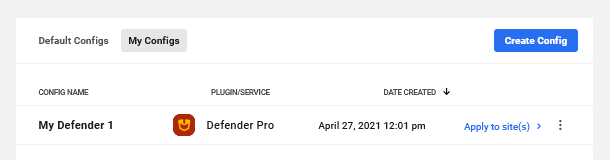
If needed, you can edit the name of a configuration, view further details about it, or delete it, by selecting the appropriate option from the dropdown that appears when clicking on the kebab icon. Note that you cannot rename or delete the default WPMU DEV configs.
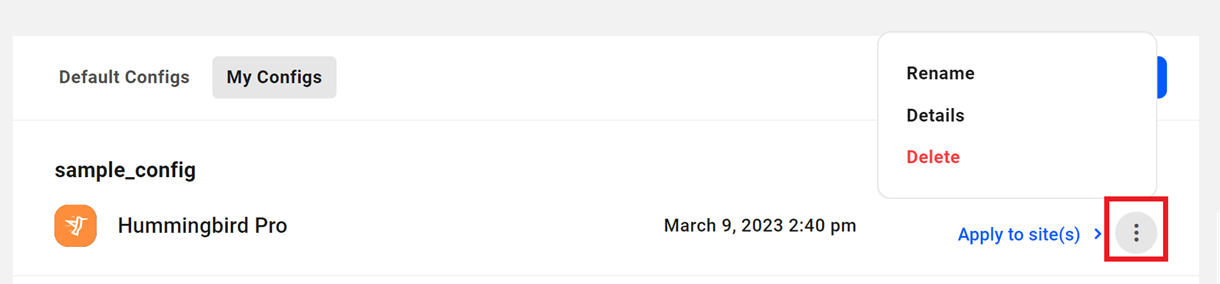
Clicking the Details option there will pop open a modal to display exactly what has been included in that config.

Creating a new config
There are two ways to create custom configs for any service:
- From the My Configs screen
- From the Overview screen or applicable plugin/service for any site in your Hub
Creating a config from My Configs
To create a new config for any service from the My Configs screen, click the Create Config button at the top-right of that screen.
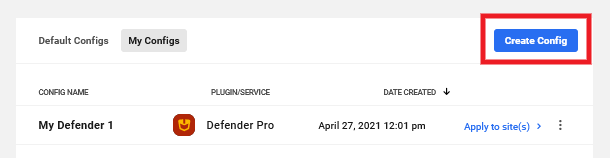
In the modal that pops open, give your config a Name, select the Site you want to create it from, and select the Plugin the config should apply to. Click Save when you’re done.

Creating a config from a site service
You can create a new config for any plugin/service from a site’s Overview screen, or the specific plugin/service screen.
From the site’s Overview screen
Click the kebab icon in the plugin module you want to open the options, and click Save Config.
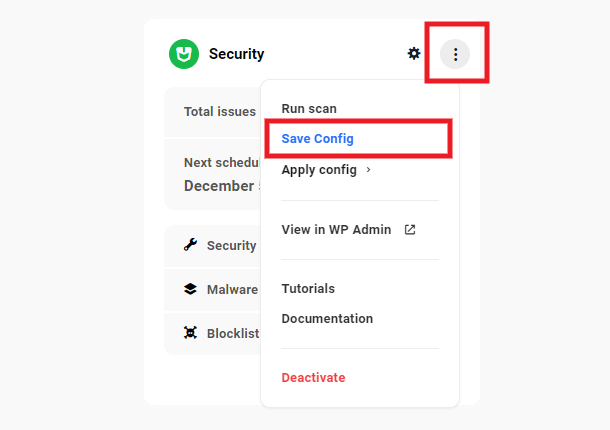
Enter a Name for your configuration in the modal that pops up, and click Save.

From the plugin/service screen
On the plugin/service screen, click Config in the main module on that service’s screen, and select Save Config. Enter the desired config name as above and click Save.
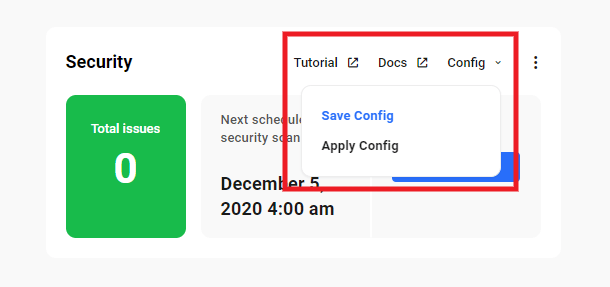
Applying a configuration to a site
Applying a config from the Configs screen
You can apply any of your available configurations to any or all of your sites in one go from the My Configs screen. Click the Apply to site link for the configuration you want.
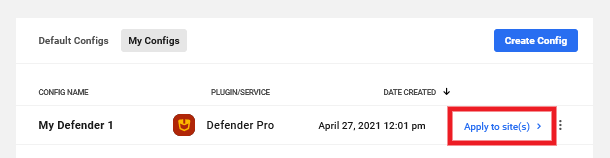
Then select the site(s) where you want to apply this configuration.
By default, this list will display the first 20 sites in your Hub. If you have more than than that, click the Load More button to load an additional 20. You can also use the Find a website search form to locate the specific one(s) you want.
You’ll see the Apply to “x” sites button will update dynamically with the total number of sites you select. Once you’ve selected the site(s) you want, click that Apply button to apply your chosen config to those sites.
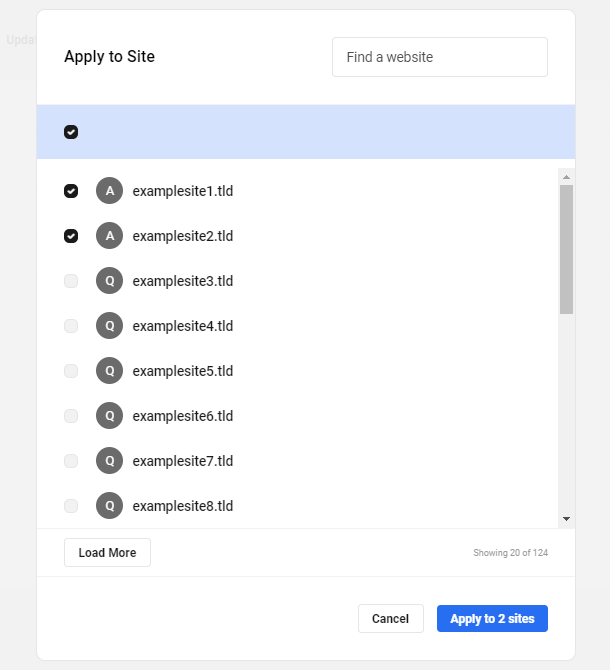
Note that if you apply an Uptime config to a site where Uptime is not yet active, it will be activated automatically. You’ll see a reminder of this when you select the site(s) where you want to apply the config.

Applying a config from a site service
You can apply any one of your preset service configurations to a site while on the site’s main Overview screen, or the service’s screen for that site.
From the site’s Overview screen
Click the kebab icon in the plugin module you want to open the options, and click Apply Config.
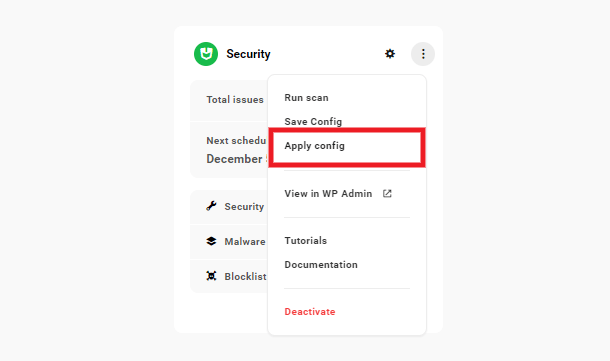
That will pop open a modal displaying all the custom configs you have created for that plugin/service. Select the one you want and click Apply.
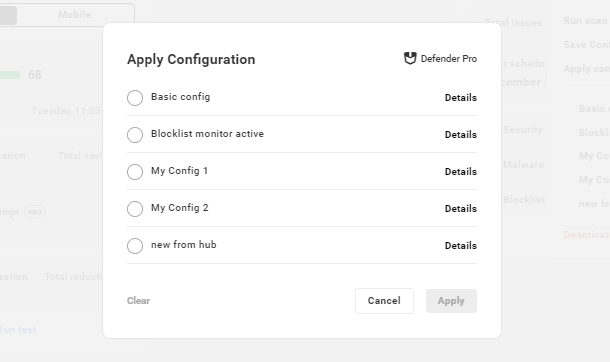
As on the My Configs screen, clicking the Details option here will pop open a modal to display exactly what has been included in that config.
From the plugin/service screen
On the plugin/service screen, click Config in the main module on that service’s screen, and select Apply Config.
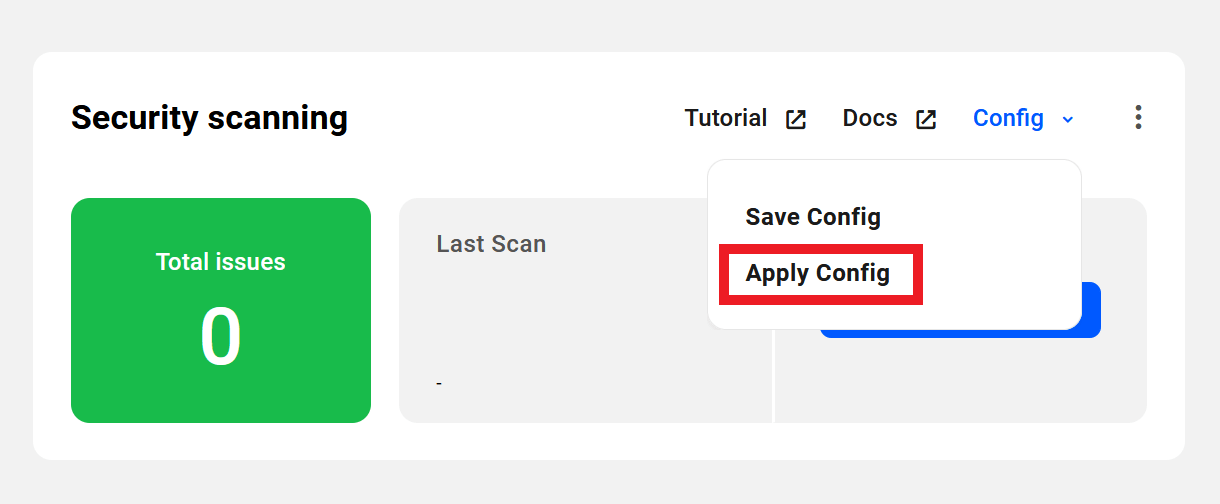
In the modal that pops open, select the configuration you want, and click the Apply button.

Again, clicking the Details option here will pop open a modal to display exactly what has been included in that config.
When applying a custom config from a site’s Overview or plugin/service screens, a modal will pop up prompting you to confirm the action. Click Yes to confirm, or Cancel if you do not wish to proceed just yet.
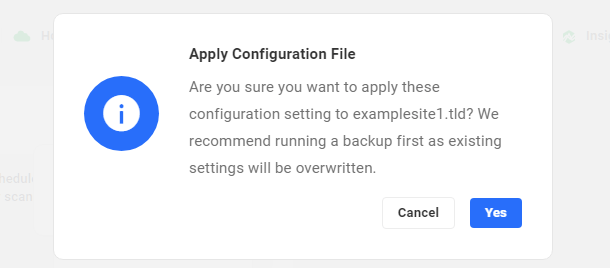
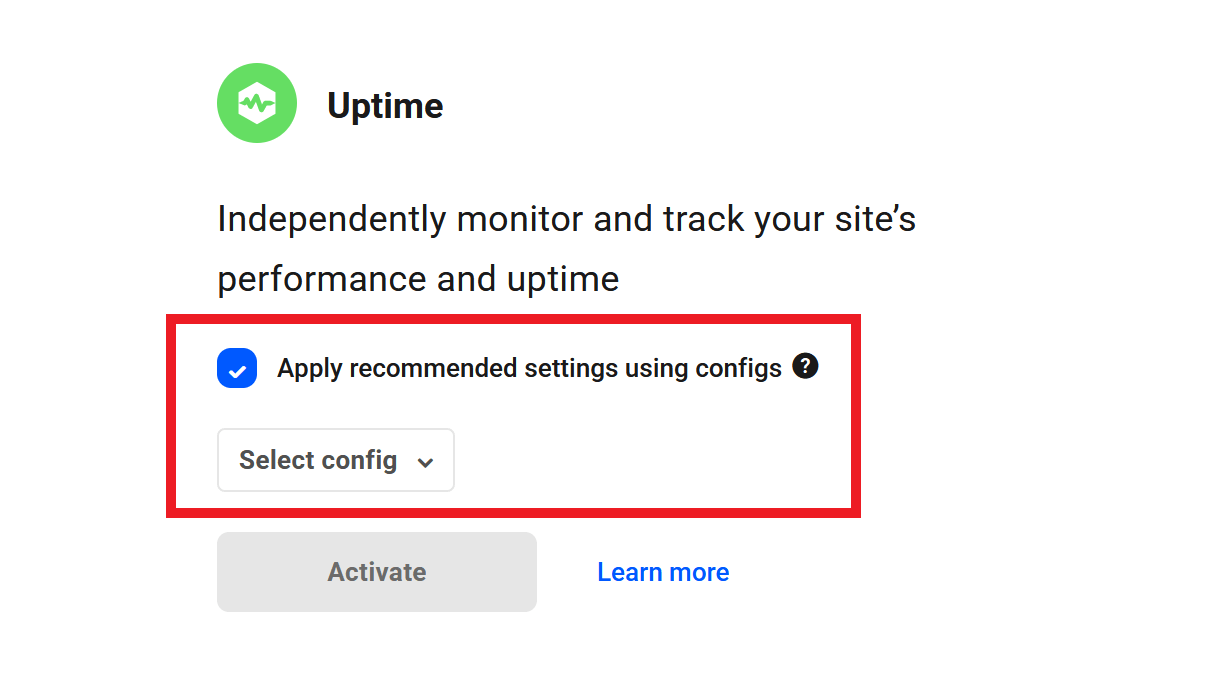
If the plugin or service is not yet active, you’ll be greeted with the initial setup screen where you’ll have the option to apply a preconfigured or custom config right away.
To apply a config from the setup screen, check the Apply recommended settings using configs box, select the config you want to apply, and click the Activate button.
3.4.2 Quick Setup
Link to chapter 4By default, every site that you create on our hosting comes equipped with Pro versions of several of our award-winning plugins automatically installed for you.
However, you can use the Quick Setup feature to easily install & configure several premium WPMU DEV plugins & services on any 3rd-party site that you connect to your Hub.
You can apply either our default configurations, or use your own custom ones that you set up in the Configs section of your Hub.
To launch the Quick Setup, click either the Open Quick Setup button in the feature’s hello bar, or click the kebab icon at top right to open the site options, then click the Quick Setup link there.
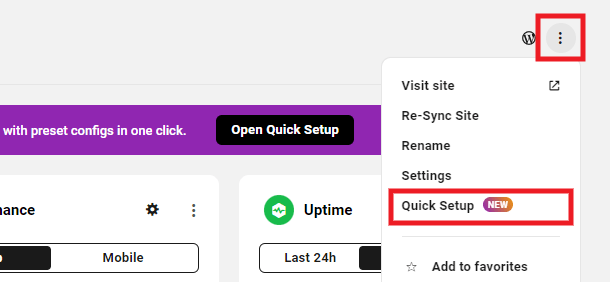
Clicking either option will open the Quick Setup screen where you’ll see all the services that can be enabled and configured at once on that site.
There are two ways to run the Quick Setup wizard: use the Default Setup or select to use Advanced Options.
The Default Setup is the fastest way to get all available services up and running in just a few clicks using our default configurations. Available services are grouped in 2 categories:
- Security, Backups & Automated Updates – Check this category to include Defender, Snapshot and Automate in the setup.
- Performance & Uptime – Check this category to include Smush, Hummingbird and Uptime in the setup.
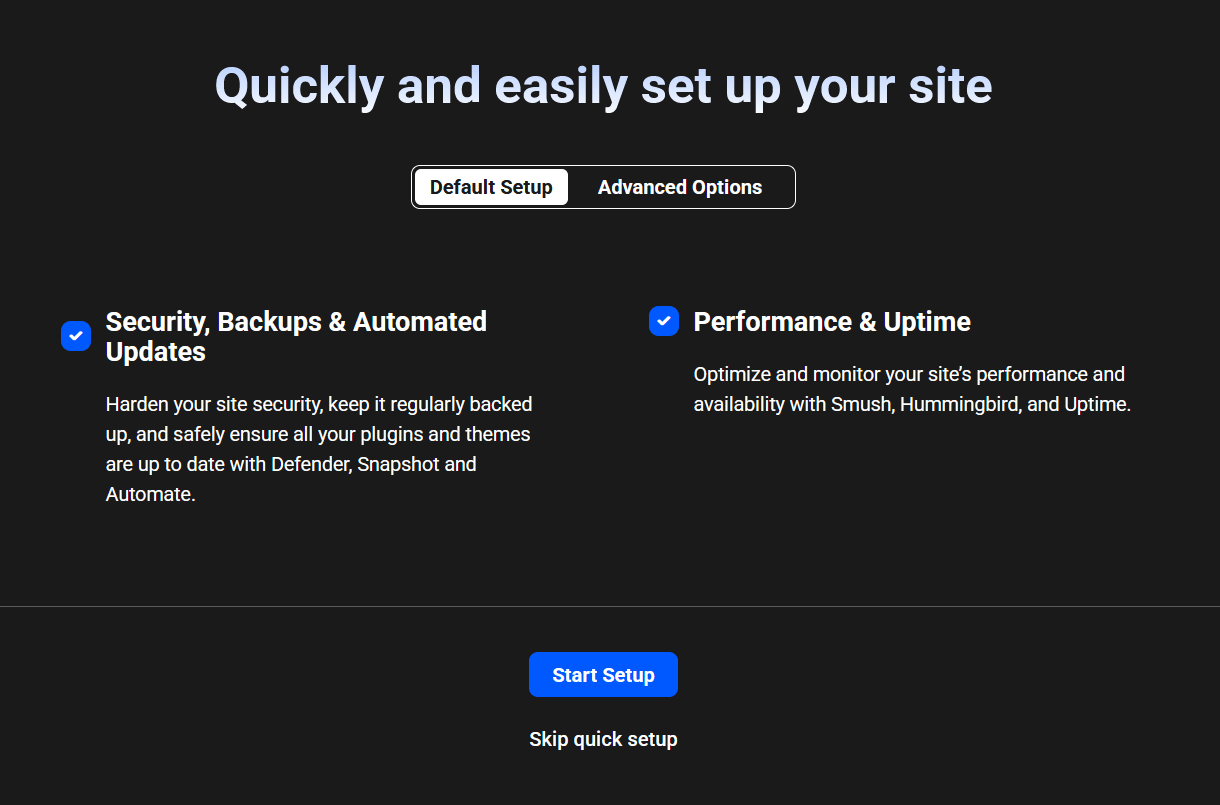
Click the Advanced Options toggle at the top if you prefer to include only selected plugins & services in the setup, and optionally use your own custom configs for them.

By default, all services are pre-selected, regardless of which option you choose. If there are any services that you do not want to configure with the Quick Setup, simply uncheck them.
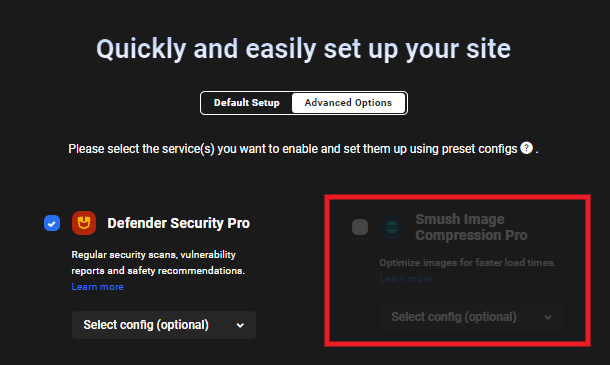
Note that if any services are already active on your site, they would be disabled in the Quick Setup wizard (greyed out) as their configuration cannot be overwritten by this feature. In that case, you’d want to first deactivate the desired service in your Hub. Then launch the Quick Setup again, and it will then be available for selection.
Available services will have an active selectbox where you can select either the default WPMU DEV config, or any custom config you may have already set up. See the My Configs chapter below for more info on creating custom configs.
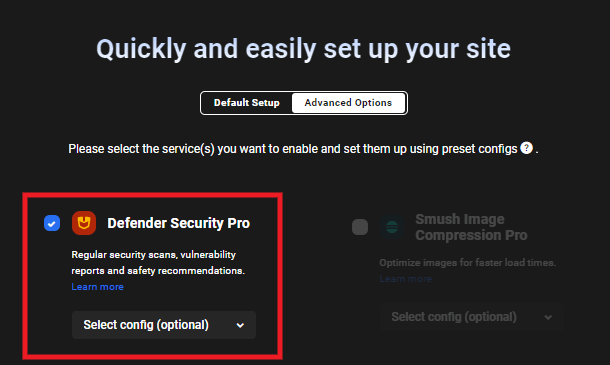
If you have already selected a custom config for a service, and want to revert back to the default WPMU DEV config, simply select the default config at the top of that service’s configs list in the dropdown.
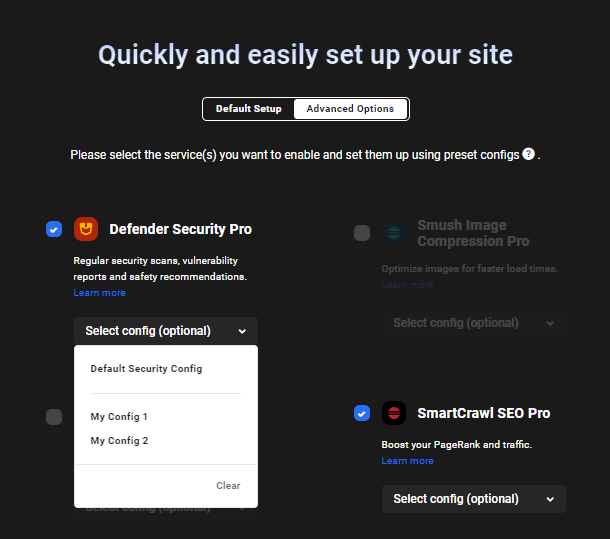
Once you have selected the services you want to configure with the Quick Setup, and have selected any custom configs you want to apply to those services, click the Start Setup button at the bottom.

The configs labels will change to display which services have Completed their configuration, which one is currently Activating, and which are still Pending configuration.
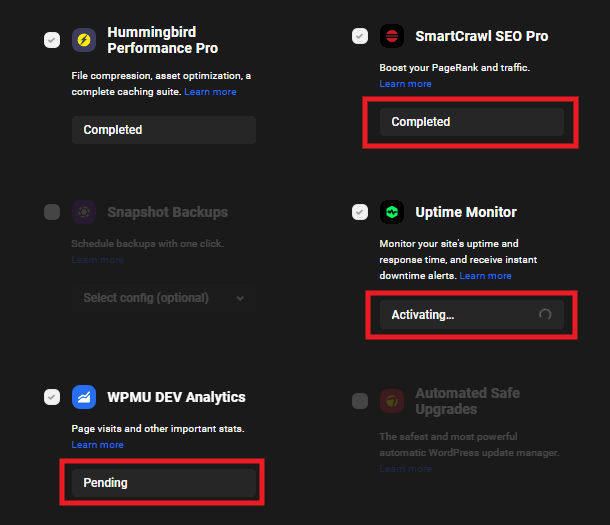
The whole process only takes a few seconds. Once the Quick Setup has completed, your Hub will automatically refresh and you’ll be directed to the Overview screen for that site.
Resetting the Quick Setup
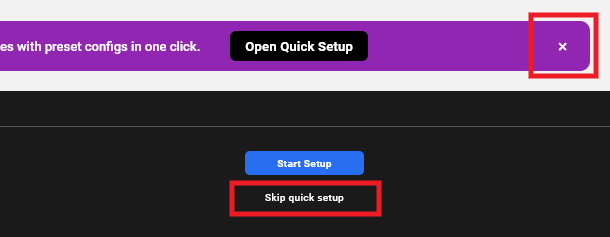
You can dismiss the Quick Setup either by clicking the [x] icon in the hello bar to close it, or by clicking the Skip quick setup link at the bottom of the Quick Setup screen.
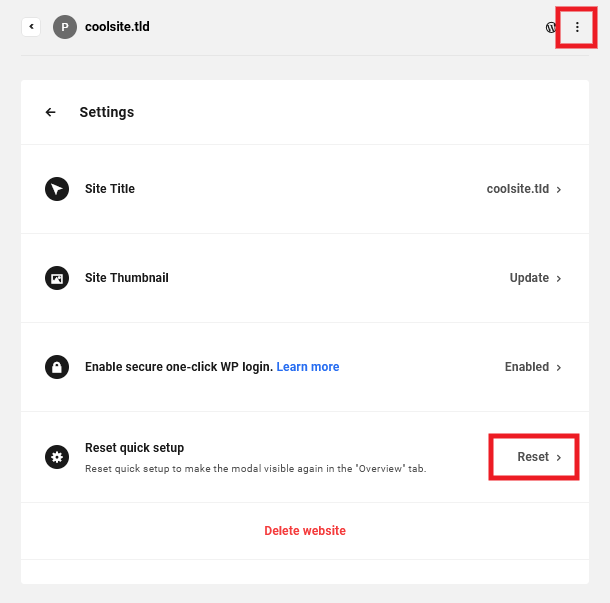
If you had previously dismissed the Quick Setup and wish to get it back again, click the kebab icon at top-right to open the site options, and select Settings. Then click the Reset link for the Reset quick setup option.
3.5 Site Templates
Copy chapter anchor to clipboardThe Site Templates area in your Hub is where you can create and manage your own custom site templates, as well as preview the preconfigured templates from WPMU DEV.
Any site template here can be used when creating a new site on our dedicated hosting service.
Please note that Site Templates are not available for selection when creating a site on an unlimited server. A future update to that service may remove this limitation.

Your custom templates will be located under the My Templates tab, and the preconfigured WPMU DEV Templates can be found under their own tab.
You can pop open a preview of any WPMU DEV site template in a new tab by hovering over the template and clicking on the Preview Template button. Or visit our Site Templates page if you’re not already logged into your Hub.
You can also create a new WPMU DEV hosted site directly from this screen by hovering over the template you wish to use and clicking the Create Site button

You can search for a specific WPMU DEV template using the Search field, or Sort them by most Popular or ascending/descending alphabetical order.

Toggling on the Pin favorites to top option will display all templates that you have favorited by clicking the star icon next to the template name.

You can also Filter templates by Category, Theme or Page Builder. In addition, WPMU DEV has partnered with Astra Themes to offer you several dozen of their premium starter themes – for free. Toggle on the Premium Astra templates only option to only show those templates.

Custom Templates
If you have not yet created any custom site templates, the My Templates screen will prompt you to create one.

Please note that the Custom Templates feature is not available to Free Hub users, unless you have also created a site on a standalone hosting plan. See Free Hub Restrictions for details.
Click the Create Template button at the top-right of that screen to pop open a modal window where you’ll be prompted to select the dedicated hosting Site you want to use as a template (this feature is not available for sites on unlimited hosting servers). Then enter a template Title and optional Description.

Click the Create Template button to start the process. A progress indicator will appear so you can estimate how long it will take.

The actual time needed to create the template will depend entirely on the size of the site used for it. You’ll receive an email as soon as your template is created.
Note that you can also create a template by clicking the Create Template option under the kebab icon for any WPMU DEV hosted site on the My Sites screen of your Hub.

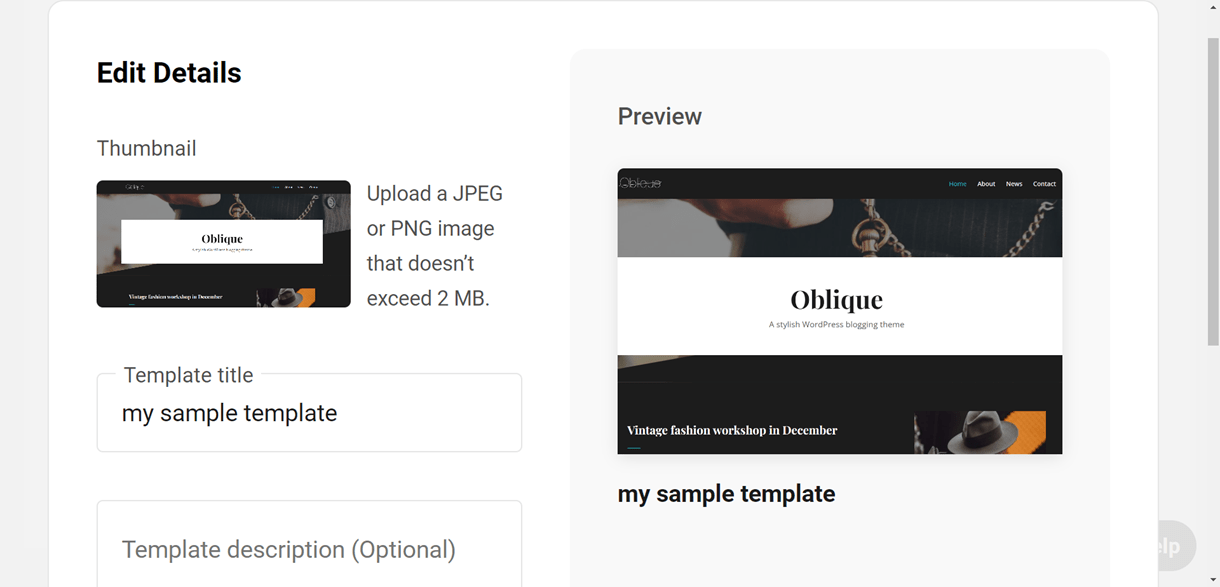
Click the kebab icon to reveal options to Edit the Title and optional Description as well as add a custom Thumbnail image, or Delete the template.

To add a custom thumbnail image, first click Edit details and then click Add Thumbnail in the Edit Details modal window.

Navigate to and select a JPEG or PNG image to use as a custom thumbnail image. You should then see the selected image in the Template Preview. Click Save to save your changes.
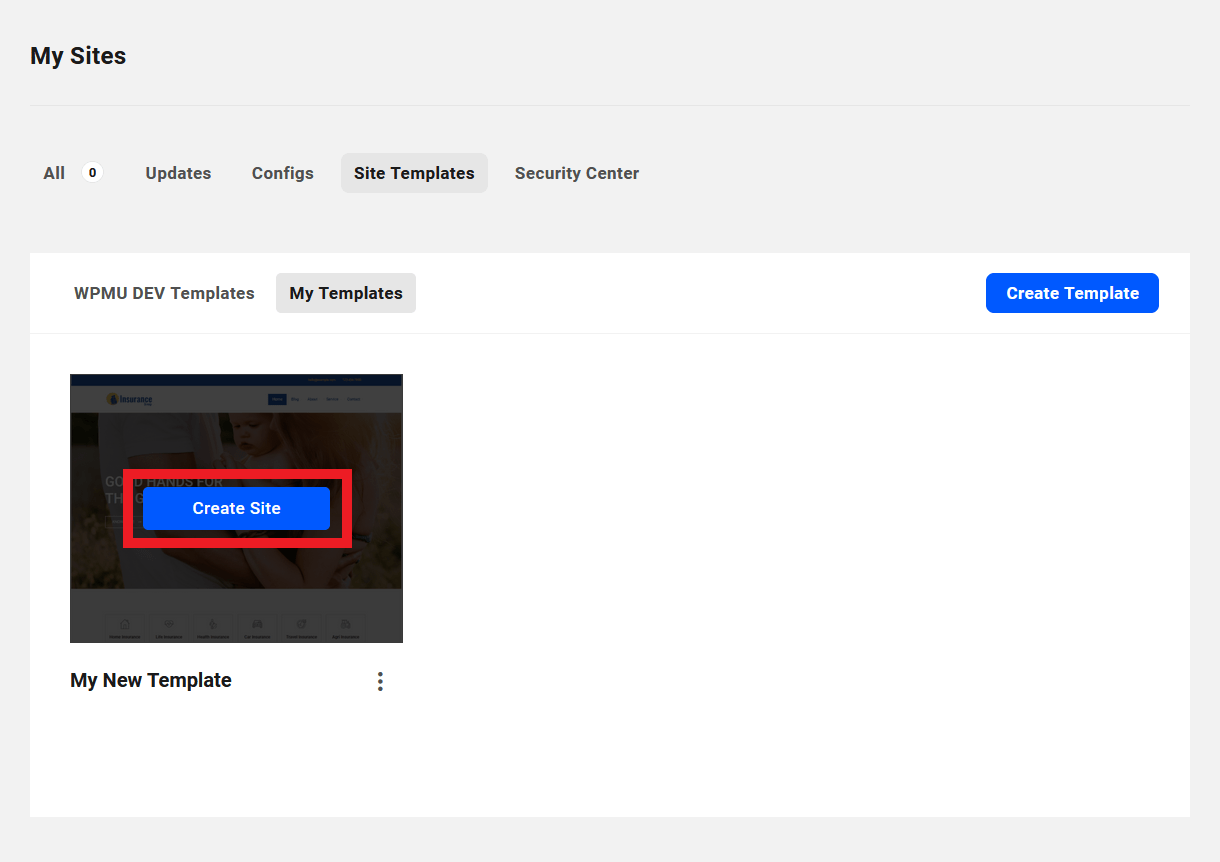
Just like with our preconfigured templates, you can also create a new WPMU DEV hosted site directly from this screen by hovering over the custom template you wish to use and clicking the Create Site button
See Full Site Editing blog post to learn more about how FSE works and WPMU DEV hosted FSE templates.
Check out our Create and Sell Your Own Site Templates For Free With WPMU DEV Hosting post in the blog to see how they can help get you one step closer to a fully automated WordPress SaaS business.
3.5.1 Site Templates FAQs
Link to chapter 5Will custom templates cost me anything?
Nope. Each custom template that you create is actually a full backup of the selected site which we store on our servers. It does not affect your hosting storage at all. When you choose to use a custom template to create a new site, that backup is fetched and restored at your chosen new site URL.
Is there a limit to how many custom templates I can create?
Yes. You can have up to a total of 25 custom templates in your account. Note that you can only create one custom template at a time though; the create template buttons will be disabled while a template creation is in progress.
Can I create a custom template from a 3rd-party site connected to my Hub?
No. It is only possible to create custom templates from sites hosted by WPMU DEV.
If I create a custom template and then delete the site from which it was created, does the template get deleted as well?
No. Your custom template would not be affected if you delete the site it was made from.
Can I make multiple custom templates from the same site?
Yes. You can save a first custom template. Then make changes to the site and save a second template. Make more changes and save a third template, and so on.
Can I edit or update the content of existing custom templates?
No. As custom templates are actually full site backups, it is not possible to edit or update anything in them once they’re created. If you do need to edit or update your template, you’d need to create a new one from your updated source site, then delete the outdated template.
Why don’t I see a screenshot or preview button in My Templates?
Since custom templates are backups, they cant be previewed live. However, you can choose to upload custom thumbnails for your templates. To do this, click Edit details in the template options, and then click Add Thumbnail.
Is there any limit to the size of my custom templates?
No, your templates can be made from sites of any size. However, if you try to create a site on a hosting plan whose available storage space is less than the size of your template, the site creation will fail. For example, if you have a template made from a large site on a Gold plan and try to use that for a new site on the Quantum plan, it would most likely fail as only 4 of the 10Gb of storage is available to use on the Quantum plan. See About System Storage for more.
Are all the users, license keys, settings, site data, etc. preserved in templates?
Yes. Creating a site with a WPMU DEV or custom template creates an exact duplicate of the site the template is made from.
Note that if there are any premium theme or plugin licenses on a site you use for a custom template that you do not want enabled on sites created from that template, you would want to remove those before making a template from the site.
There are also a few differences in how users are handled for the two template types as seen below.
WPMU DEV Templates
When a site is created using a WPMU DEV template:
- The existing wp-admin user is deleted and a new admin user is created using your email address and a random password.
- SSO login is enabled for this new admin user and access to the WPMU DEV Dashboard is limited to this admin user only (you can add other admin users later if you need to under the Permissions tab in the Dashboard settings).
- If the site is created by a client when purchasing a Hosting Reseller product from you, another user is created for the client based on the credentials they provide when creating the site, with the WordPress user role you set for that Reseller product.
Custom Templates
When a site is created using a custom template:
- Existing users are preserved with the assumption that you would have an admin user in the template already, with SSO login enabled for that user and access to the WPMU DEV Dashboard plugin already restricted to that user. This is recommended so you can provide support on your client sites.
- If the site is created by a client when purchasing a Hosting Reseller product from you, another user is created for the client based on the credentials they provide when creating the site, with the WordPress user role you set for that Reseller product.
3.6 Security Center
Copy chapter anchor to clipboardThe Security Center is where you can activate and manage IP protection for any or all of your WPMU DEV dedicated sites and unlimited servers, as well as 3rd-party sites. You’ll find two distinct services available here; see the corresponding chapters below for details.
- AntiBot Global Firewall – Proactively protect your sites & servers against potential threats by instantly blocking over 250,000 known malicious IPs.
- Custom IP List – Create and manage your own custom lists to allow and/or block IP addresses, and automatically sync them with any of your sites & servers.
3.6.1 AntiBot Global Firewall
Link to chapter 6The AntiBot Global Firewall enables you to synchronize an automatically-updated IP blocklist with any or all of your sites. The feature actively monitors millions of IP addresses and intelligently updates its blocklist data twice daily to ensure your sites are protected by the most robust firewall available.
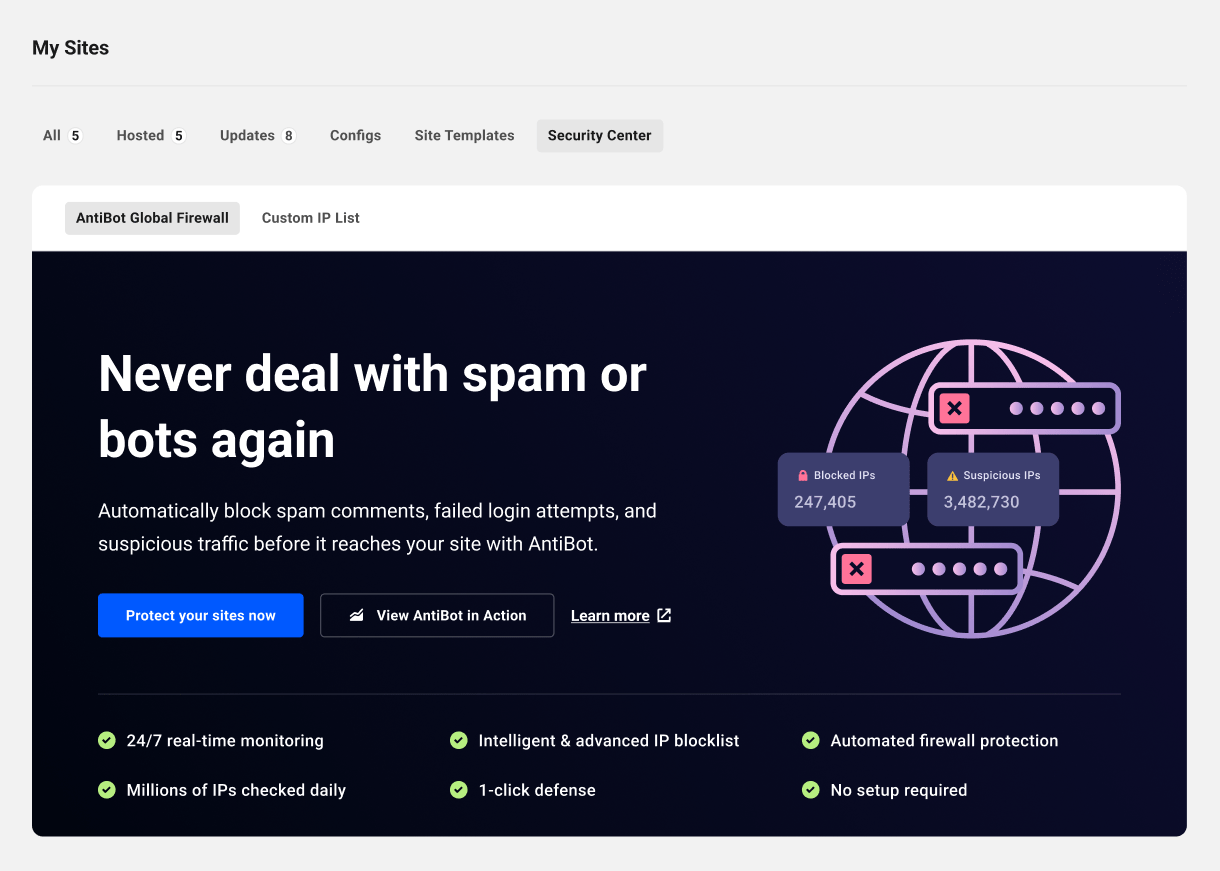
This service works out of the box with WPMU DEV hosted sites & servers. However, 3rd-party hosted sites where you wish to enable the service must be connected to your Hub, with the Defender plugin (version 5.3 or greater) active on them.
Click the Protect your sites now button to get started. Or click the View AntiBot in Action button to see current statistics about the feature; see AntiBot Stats below for more information.
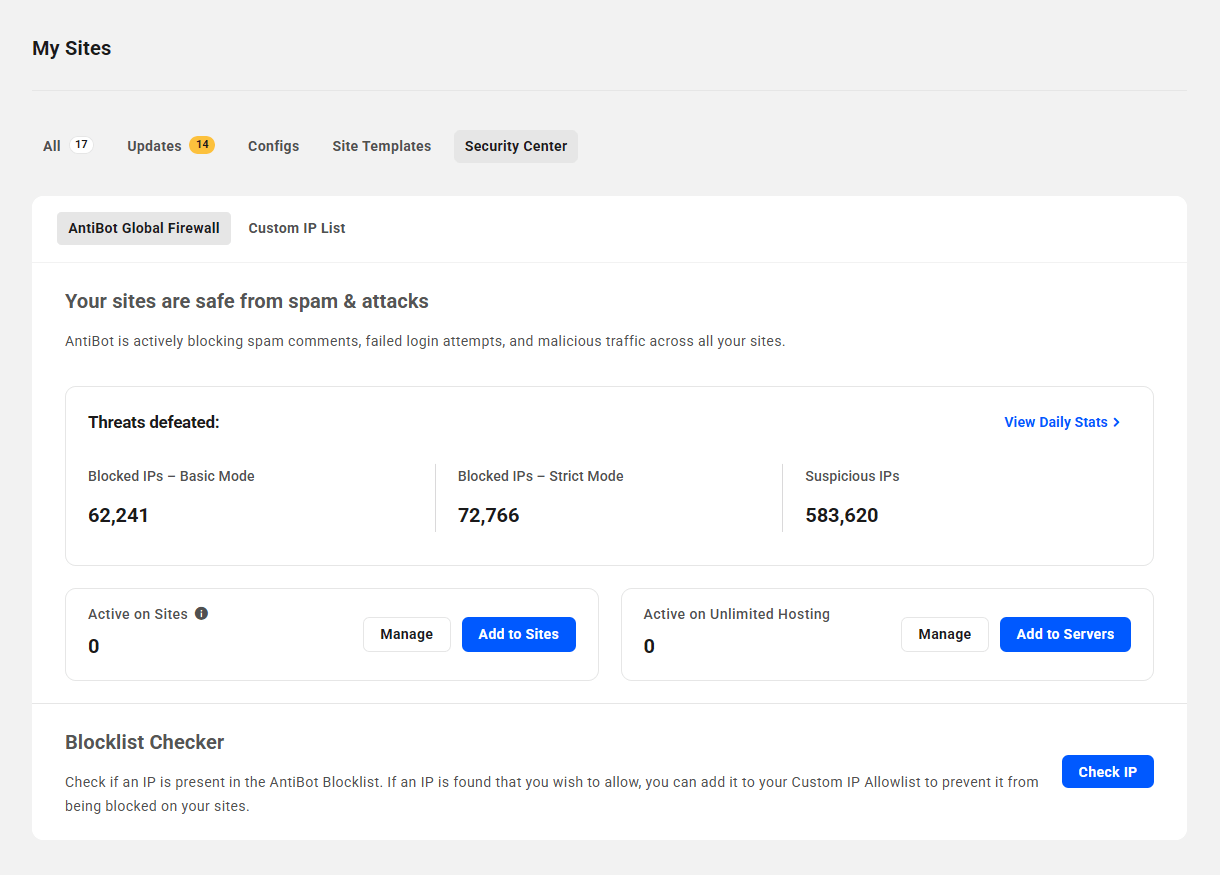
Once activated, the screen will refresh and will display some cumulative data in the AntiBot in Action section. Click View Daily Stats to get detailed statistics.
- Blocked IPs – Basic Mode – The total number of IPs blocked by AntiBot Basic mode.
- Blocked IPs – Strict Mode – The total number of IPs blocked by Strict mode
- Suspicious IPs – The number of IP addresses currently being monitored for suspicious activity.
Add to Sites
Click the Add to Sites button to pop open a modal window where you can select the AntiBot Mode that you wish to be applied on selected WPMU DEV dedicated or 3rd-party hosted sites.
- Basic – This is the default mode and it allows safe bots and tools like uptime monitors or SEO scanners to access your site, and it skips blocking visitors with minor issues like 404 errors.
- Strict – This mode blocks all suspicious activity, including visits with broken links.
Then check the Select all box or select just the specific sites you want.

Filters & Labels
If you have a large number of sites, you can filter the list to display only those you need. Click Filters & Labels and select to display sites according to Hosting, Favorites, custom Labels or currently active AntiBot Mode. Click the Activate button when you’re done.
Note that the filters & labels here work just as they do on your My Sites screen to filter your sites. See Filters & Labels below for details.

Manage Sites
Once you’ve activated the service on at least one site, a Manage Sites button will appear. Click it to view all sites where AntiBot is active, and optionally switch modes or deactivate the service on selected sites.

That will pop open a modal window where you can check the Select all box or just select the specific sites you want. As above, you can filter the list to display only those sites you need. Then click the Apply Action button to select the action to apply to all selected sites.

Add to Servers
Click the Add to Servers button to pop open a modal window where you can select the AntiBot Mode that you wish to be applied on selected WPMU DEV unlimited hosting servers. Note that when active on an unlimited hosting server, AntiBot protects all sites on that same server; there is no option to enable or disable it per site on unlimited servers.
- Basic – This is the default mode and it allows safe bots and tools like uptime monitors or SEO scanners to access your site, and it skips blocking visitors with minor issues like 404 errors.
- Strict – This mode blocks all suspicious activity, including visits with broken links.
Then check the Select all box or select just the specific servers you want. There are no filtering options in this modal.

Manage Servers
Once you’ve activated the service on at least one server, a Manage Servers button will appear. Click it to view all servers where AntiBot is active, and optionally switch modes or deactivate the service on selected servers.

That will pop open a modal window where you can check the Select all box or just select the specific servers you want. Note that there is no option to filter servers here.

AntiBot Stats
Click the View AntiBot in Action button on the welcome screen, or the View Daily Stats link that appears in the AntiBot in Action section once activated on at least one site. That will pop open a modal window where you can view detailed statistics, categorized as follows:
- Suspicious IPs – IPs we’re keeping an eye on due to unusual behavior patterns.
- Blocked IPs – A running total of all the harmful IPs we’ve added to the blocklist.
- IPs Sneaking Around Your Non-Existent Pages (404) – IPs caught accessing non-existent pages (404s), which means they were probably probing or scanning sites.
- IPs Triggering Failed Login Attempts – IPs responsible for failed login attempts across the AntiBot network.
- IPs Flagged for Spam Comments – IPs that have been caught posting spam comments across the AntiBot network.
- IPs Attempting Unauthorized Auth – IPs that have repeatedly attempted to access areas protected by HTTP authentication.
- IPs Flagged by Web Application Firewall – IPs with suspicious behavior that have been blocked by server-level Web Application Firewall rules.
- IPs Trying Suspicious SSH Access – IPs attempting to use brute-force attacks to connect to your server via SSH.
- IPs Caught Exploiting XML-RPC Endpoint – IPs accessing the WordPress XML-RPC endpoint, a common target in DDoS or brute-force attacks.
- IPs Recognized as Potentially Harmful Traffic Sources – IPs that attempted actions which could pose a risk to online services, based on automated traffic analysis.
- IPs Associated with Suspicious Website Requests – IPs of requests that matched patterns commonly associated with misuse or automated abuse, identified through routine review of website traffic.
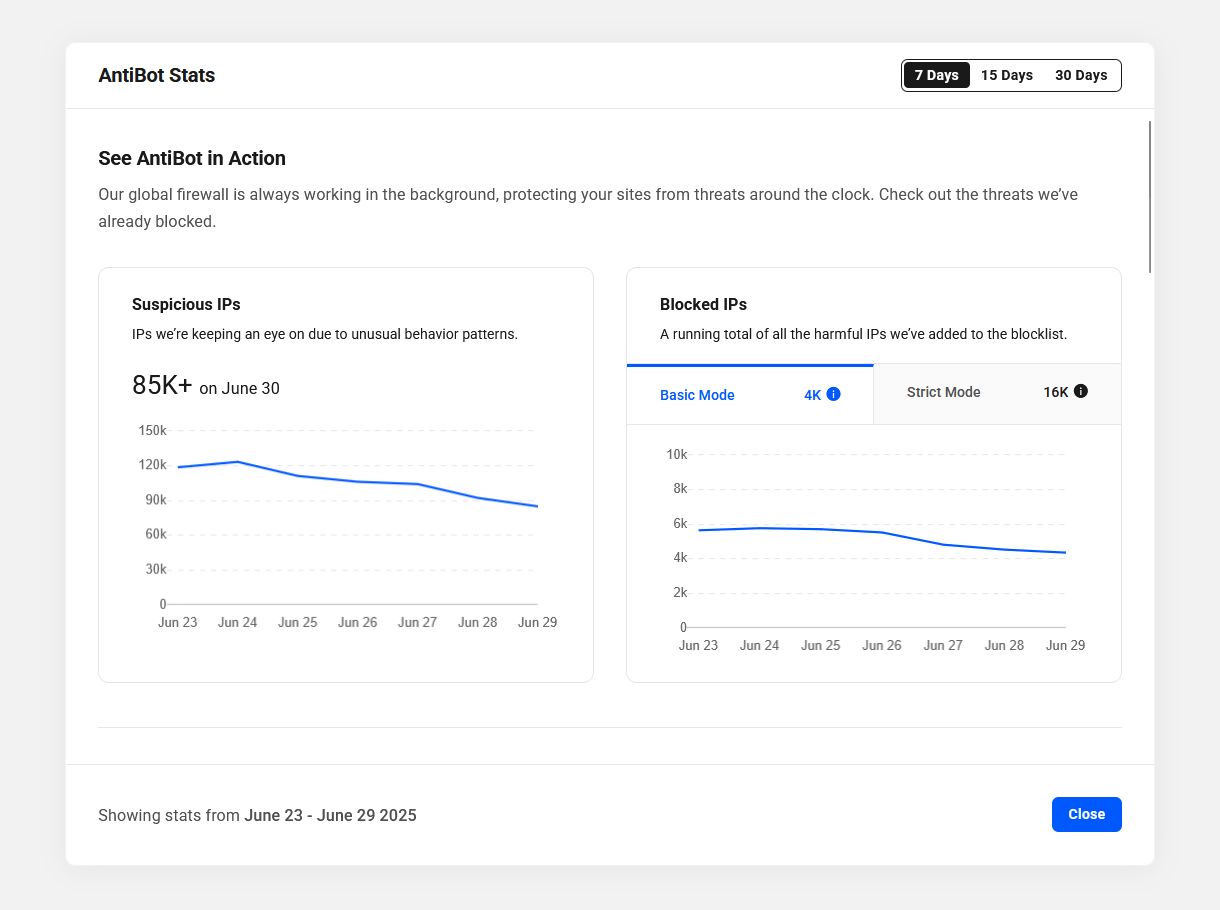
Note that only the first two categories of statistics are immediately viewable, but you can scroll through the list to view all categories.
Use the date range toggle at top-right to view stats for the last 7, 15 or 30 days.
Blocklist Checker
If you ever have the need to allow an IP address that might be on the AntiBot blocklist, first click the Check IP button in the Blocklist Checker section of the main AntiBot screen.

That will pop open a modal window where you’ll enter the IP address you wish to check, and click the Search button.

If the IP is on the blocklist, you’ll see a confirmation message with options to Report as a Trusted IP or to Add to Your Custom Allowlist if you want to allow that IP to access sites where you have synced that list.

Selecting Add to Custom Allowlist will prompt you to confirm the action.

If the IP is not on the AntiBot blocklist, the tool will inform you of that as well.

3.6.2 Custom IP List
Link to chapter 6The Custom IP List is where you can create and manage your own custom lists to allow and block IP addresses, and automatically sync those lists with any or all of your sites (both dedicated hosting and 3rd-party) as well as your unlimited hosting servers.
Once synced with a site or server, you can also view your Custom IP Lists in a synced site’s wp-admin at Defender > Firewall > Local Blocklist. You can sync the lists from there as well at any time.

Both the allowlist and blocklist accept IPv4 and IPv6. IP ranges are also accepted, in either CIDR or hyphenated format.
Add the IPs you want to allow or block to the corresponding list, one address or range per line, and click the Save button for each list.
Add to Sites
Click the Add to Sites button to pop open a modal window where you can select the WPMU DEV dedicated hosting or 3rd-party sites where you wish to activate the feature. Check the Select all box or select only the specific sites you want.
Just like with the AntiBot site filters, you can filter the list of sites here to display only those you want by clicking the Filters & Labels dropdown.

Add to Servers
Click the Add to Servers button to pop open a modal window where you can select the WPMU DEV unlimited hosting servers where you wish to activate the feature. This enables the Custom IP List feature on all sites on the selected server(s).
Check the Select all box or select only the specific servers you want. Note that there are no filtering options for unlimited hosting servers.

Activating on a Single Site
Dedicated or 3rd-party Hosted Site
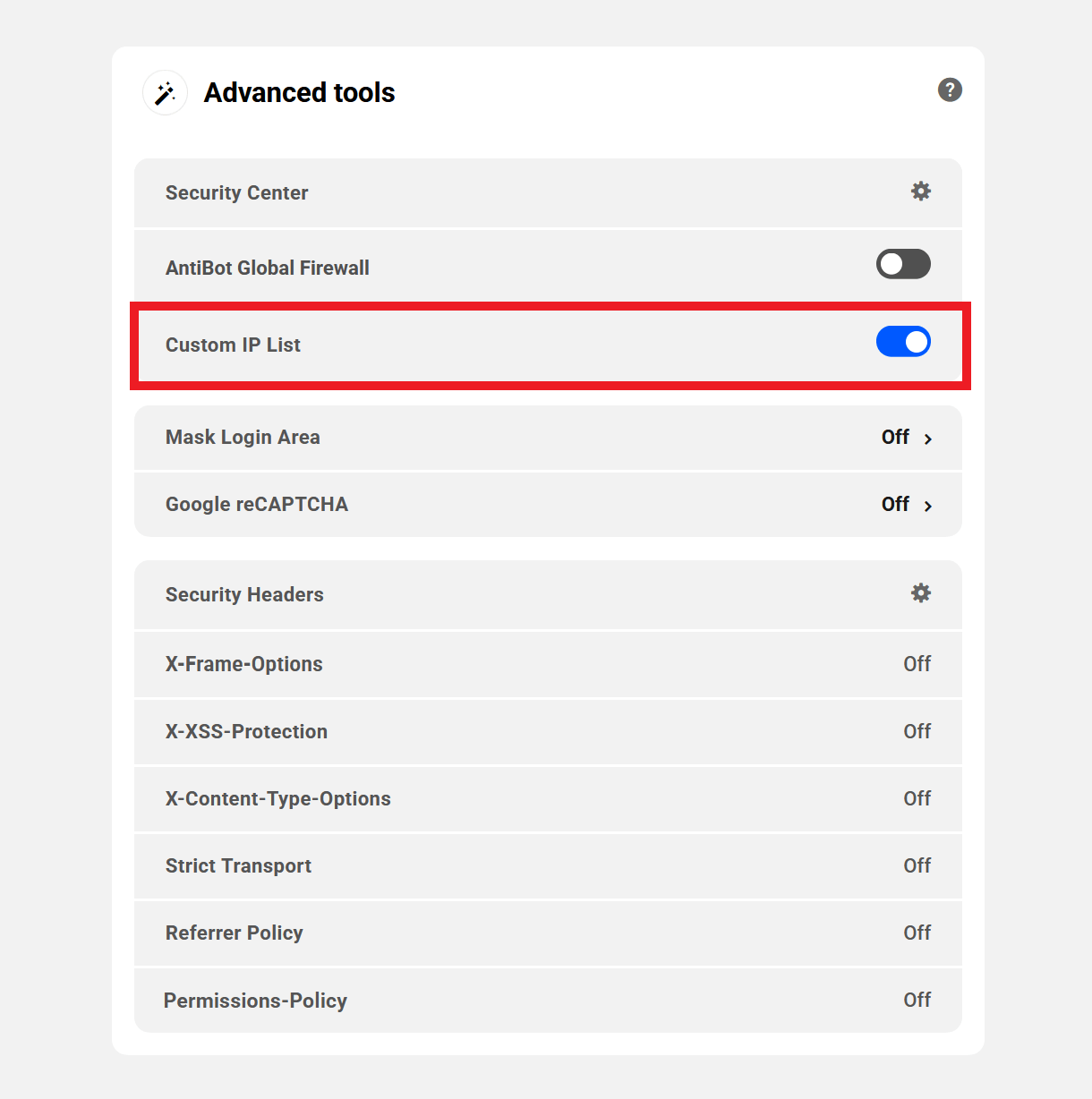
To activate the Custom IP List on a single dedicated hosting or 3rd-party site, navigate to the site’s Security tab in your Hub, and locate the Advanced Tools widget on that screen.
In that widget, toggle on the Custom IP List option. Your site is now synced with your custom allow & block lists.
Site on an Unlimited Hosting Server
To activate the Custom IP List on a site hosted on an unlimited hosting server, navigate to the site’s Security tab in your Hub, and locate the Advanced Tools widget on that screen.
If the service is not yet active on the server the site is hosted on, clicking the Off link will direct you to the server’s Tools screen where you can activate it for the server hosting that site. That will effectively activate the service on all sites on that same server.
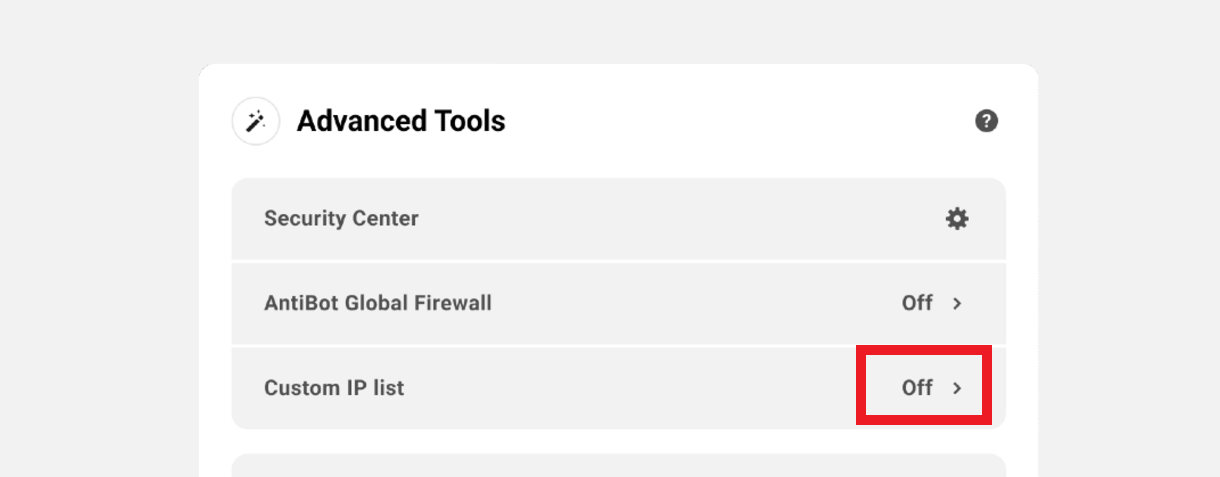
If the service is already active on the server the site is hosted on, a Manage link will appear instead that will also direct you to the server’s Tools screen where you can manage it for all sites on that same server.

Manually Syncing Your Lists
The Custom IP List automatically syncs daily with all active sites. But you can click the Sync IPs buttons that appear once you have activated the service on at least one site and/or server. That will instantly sync your lists with all sites and/or servers.

Allowlist and Blocklist Logic
If you also have local IP allow/blocklists set up in Defender, this is the logic that will be followed once your Custom IP Allow/Blocklists have been synced with your site:
- If an IP address is in either the Local IP Blocklist in Defender on your site, or the Custom IP Blocklist in your Hub, but not in either Allowlist, that IP will be blocked from accessing your site.
- If an IP address is in your local Allowlist, it will be allowed to access your site even if that same IP is in the Local and/or Custom Blocklists.
- If an IP address is present in your Custom Allowlist, it will be allowed to access your site even if that same IP is in any of the other lists
This table shows all the possible combinations where an IP address is either present or not in each list, and the result; either allowed or blocked. A “0” indicates the IP is not in the list, and a “1” indicates the IP is in that list.
| Custom Allowlist | Local Allowlist | Custom Blocklist | Local Blocklist | Result |
|---|---|---|---|---|
| 0 | 0 | 0 | 0 | Allowed |
| 0 | 0 | 0 | 1 | Blocked |
| 0 | 0 | 1 | 0 | Blocked |
| 0 | 0 | 1 | 1 | Blocked |
| 0 | 1 | 0 | 0 | Allowed |
| 0 | 0 | 0 | 0 | Allowed |
| 0 | 1 | 0 | 1 | Allowed |
| 0 | 1 | 1 | 0 | Allowed |
| 0 | 1 | 1 | 1 | Allowed |
| 1 | 0 | 0 | 0 | Allowed |
| 1 | 0 | 1 | 0 | Allowed |
| 1 | 0 | 1 | 1 | Allowed |
| 1 | 1 | 0 | 0 | Allowed |
| 1 | 1 | 0 | 1 | Allowed |
| 1 | 1 | 1 | 0 | Allowed |
| 1 | 1 | 1 | 1 | Allowed |
3.7 Filters & Labels
Copy chapter anchor to clipboardThe filters and labels features enable you to selectively display sites based on several standard categories as well as any customized labels you may want to create.
See the Filters chapter below for details on the available filters. See the Labels chapter below for more information about creating customized labels to better organize your site list.
Note that if you have team members or clients accessing your Hub or client portal, any labels you set will be visible only to you, and any labels set up by a team member or client will be visible only to that user.
To access the features, click the Filter button above your site list.
Click on a hosted site status or a category to view the sites relevant to that status or category, or click on a label to view sites that you have associated with that specific label. Filters and labels can be cleared by clicking on Clear selected.

If multiple categories and/or labels have been selected, you can click the CLEAR ALL button to remove the applied filters and labels.

It is also possible to remove individual categories and labels by hovering over the specific filter and clicking on the x icon.

3.7.1 Filters
Link to chapter 7The filters feature allows you to hone in on a specific group of sites that need attention.

Filter by Hosted Site Type, Status or Creator
Dedicated Hosting
These are the sites you have hosted on WPMU DEV dedicated hosting.
Unlimited Hosting
These are the sites you have created on WPMU DEV unlimited hosting servers.
Active
These are all the active WPMU DEV hosted sites in your Hub.
Suspended
These are sites that you have suspended using the Suspend Site option under the Hosting > Tools tab of those sites.
Reseller Client
These are hosted sites purchased from you through the Reseller feature in your Hub.
Filter by Category
When you select a category, any sites that are experiencing issues related to that category will be listed. The relevant sites will appear with an icon associated with the issue and a status giving more information about the problem. Clicking on the icons will take you to the Hosting Overview dashboard page in the Hub.
Updates
If this category is selected, the sites that require updates will appear. The update icon will be visible in the site row with a counter indicating how many updates are available for that site.
Security
Select this category to view sites with security issues that need to be tweaked. The security icon will be accompanied by the number of security issues to be resolved. For more information on resolving security issues picked up by our Defender plugin, visit the Security Tweaks document.
Performance
Choose the Performance category to group sites that have performance opportunities to be actioned. The performance icon will display your site’s current performance score in our Hummingbird plugin.
SEO
Click on the SEO category to view sites with optimization issues that need attention. This is based on your SEO performance in the WPMU DEV Smartcrawl plugin.
Backups
If the Backups category is selected, sites that have backup problems will be listed. The listed sites will show the backups icon with an informative status message.
Uptime
When the Uptime category is chosen, any sites experiencing downtime issues will be listed. The Uptime icon will appear with a status describing the issue.
Link Checker
When the Link Checker category is selected, any sites with broken links or backlinks will be listed.
Client Billing
Selecting the Client Billing category will display sites with outstanding invoices from your Client Billing tool.
3.7.2 Labels
Link to chapter 7Label Websites
Labels allow you to categorize your websites in any way you see fit, and filter the display of all sites to show only the ones you want.
Note that if you have team members or clients accessing your Hub, any labels you set will be visible only to you, and any labels set up by a team member or client will be visible only to that user.
The Hub includes 6 preset color-coded labels for grouping and sorting websites. To select a label for a site in the List view, hover over the space next to the three-dot icon for the site, and click on the label icon that will appear. You can customize these preset labels and add your own as well. See Customize Labels below for more on that.

A drop-down menu will appear with the different color-coded labels available and all you have to do is click on the desired label to assign it to that site.

Only one label can be assigned to a site at any given moment but labels can easily be changed by simply selecting a different label, or removed by selecting None.
The default available labels are:
- None
- Purple
- Blue
- Green
- Yellow
- Orange
- Red
Labels can also be assigned to sites in the Grid view through a similar process. The only difference being that the label icon is located to the top-right of the icon list.

Filter by Label
To filter sites associated with the same label, click on Filters & Labels and select the label you want to action.

Multiple labels can be selected which will display all sites associated with any of the chosen labels. In the example below, both the orange and blue labels have been selected, meaning that sites labeled with either the orange or blue tag are listed.

Customize Labels
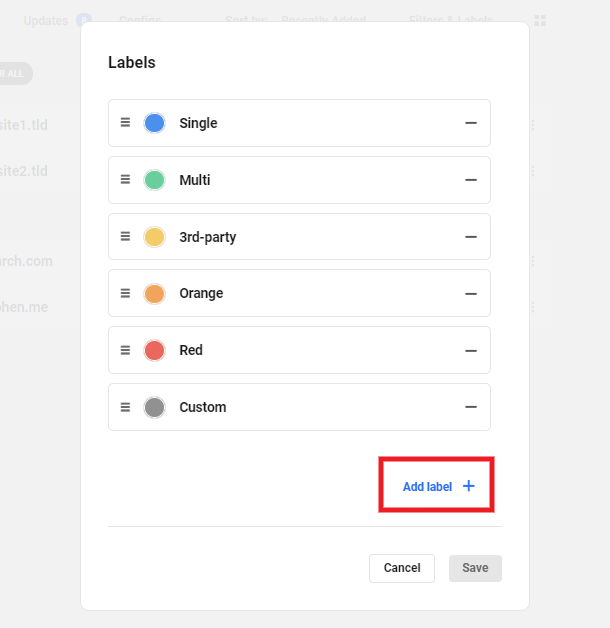
In order to give you more control over the organization of your sites, the Hub allows you to customize your labels. Click on Filters & Labels and click the Edit link to access the configuration panel.

The configuration panel allows you to add, remove, rename, change colors and change the order in which the labels are listed.
Add
New labels can be added by clicking the plus icon next to Add label.
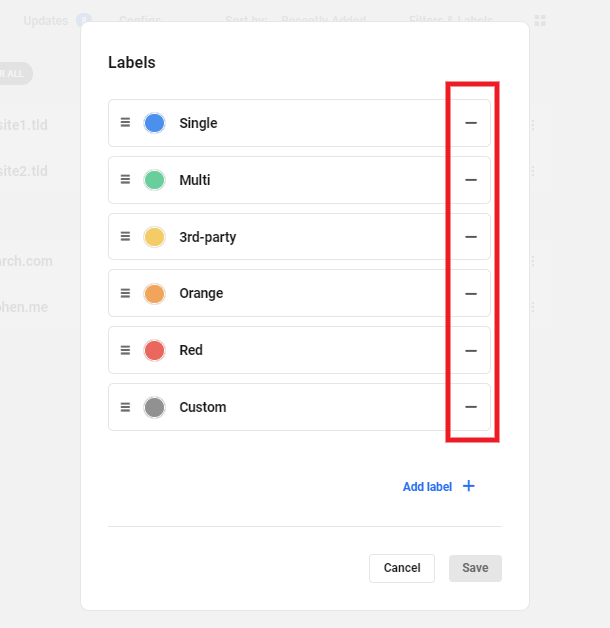
Remove
Remove labels by clicking on the minus icon.
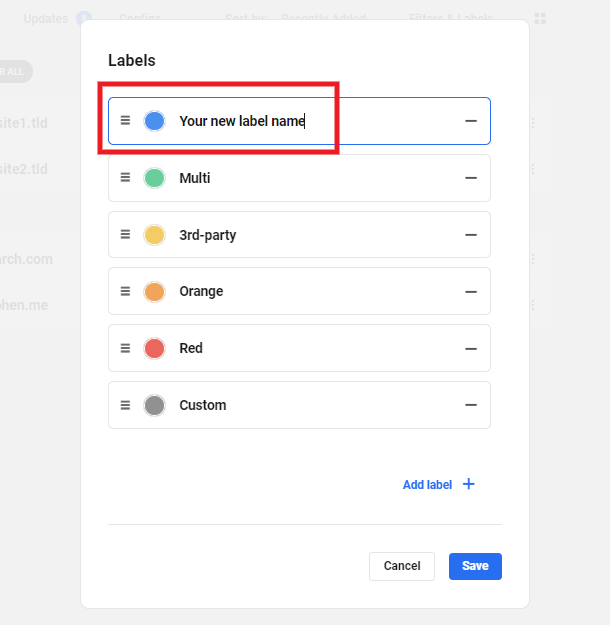
Rename
All labels can be renamed by clicking on the existing name and replacing the text with the new name.
Change Color
To choose a unique color for your labels, click on the circular color icon.
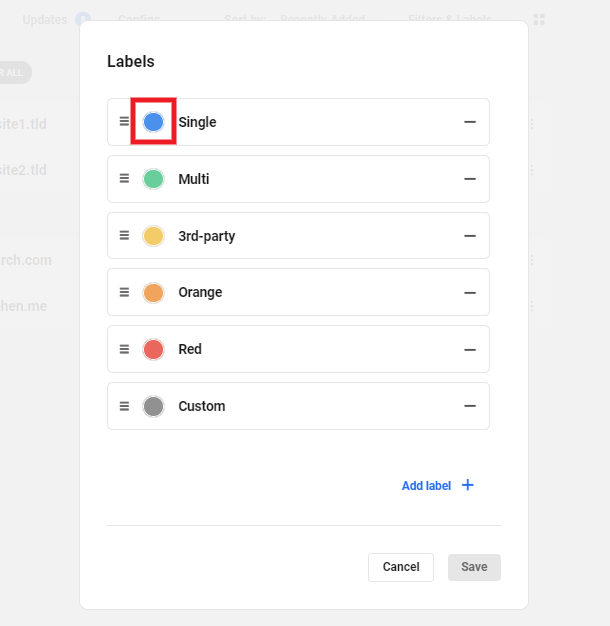
You can then move the color picker to choose the desired color or you can type in the hex color code for a specific color. Click Save to select the new color or Cancel to exit without making any changes to the original color.

Re-order
Labels can be moved around to any order you would like. This can be done by clicking on the icon with three stacked horizontal lines and by dragging the label to its new position.
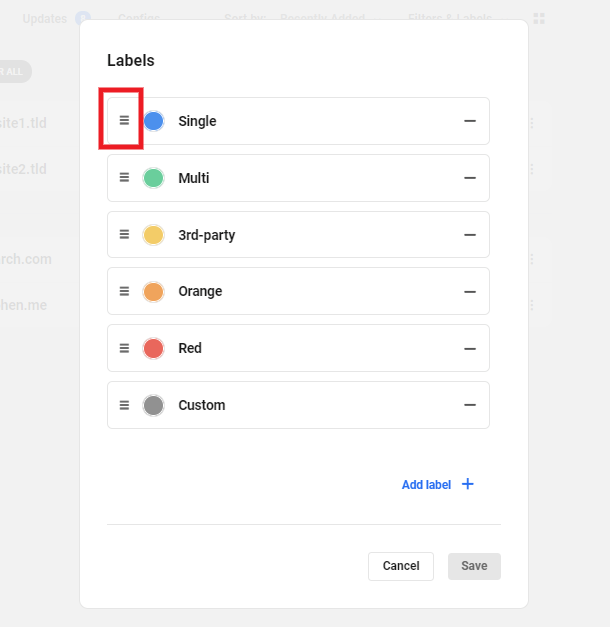
Remember to click Save to keep all of the changes you have made to your labels. Click Cancel to exit the configuration panel without changing any labels.
3.8 Grid and List View
Copy chapter anchor to clipboardThe Hub has both a Grid view and List view. As noted in the My Sites chapter, the first time you visit the Hub it is set to the Grid view. After the first visit, your Hub will remember the last selected view used and default to that on your next visit.
Grid View
The Grid view pulls a thumbnail screenshot of your site’s home page as a visual representation of the site along with the domain name.

Site Options
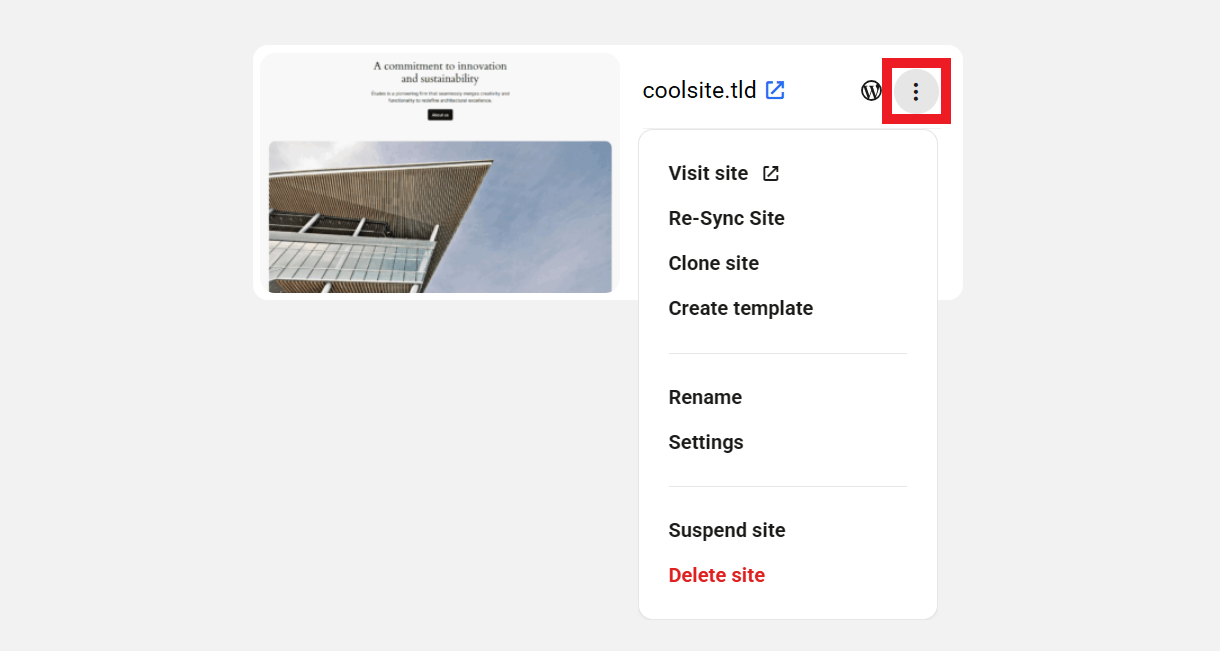
Click the three-dot icon in the top-right corner of any site in the grid to open a menu of options for that site.
- Visit site – Opens the homepage of the site in a new tab.
- Re-Sync Site – Enables you to re-sync site data with your Hub if things don’t appear right.
- Migrate site – Appears for 3rd-party hosted sites only. Shortcut to the Migration tool in your Hub.
- Clone site – For sites on WPMU DEV dedicated hosting, this shortcut launches the dedicated site Cloning wizard. For sites on WPMU DEV unlimited hosting servers, this shortcut redirects you to the server overview screen for the corresponding server, and launches the Cloning wizard there. Note that it is not possible to clone a dedicated hosted site to an unlimited hosting server, or vice-versa. If you need to move a site from an unlimited hosting server to its own dedicated environment, use the Migrate Existing Site tool from the dedicated hosting site.
- Create staging site – Appears only for sites on WPMU DEV unlimited hosting. This shortcut redirects you to the server overview screen for the corresponding server, and launches the Create new staging site wizard there.
- Create template – Appears only for sites on WPMU DEV dedicated hosting. Creates a custom template from the site.
- Rename – Shortcut to the Rename feature in the site Settings.
- Settings – Opens the Settings options for that site in your Hub.
- Disconnect site – Appears for 3rd-party hosted sites only. Logs you out of the WPMU DEV Dashboard in the site’s wp-admin and disconnects the site from your Hub.
- Suspend/Unsuspend site – Appears for WPMU DEV hosted sites only. Enables you to suspend or unsuspend access to the site for any reason; for example, if a client does not pay you for services rendered.
- Delete site – Appears for WPMU DEV hosted sites only. Click if you need to delete the WPMU DEV hosted site from your account. You will be prompted to confirm the action.
Each site in the grid also contains several icons representing the current state of features or actions that can be taken for that site.
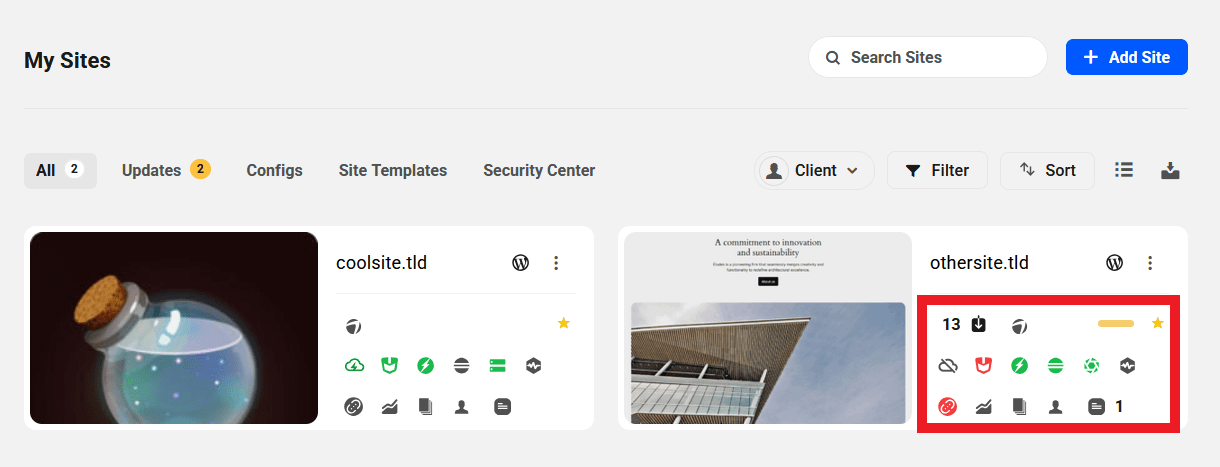
Updates
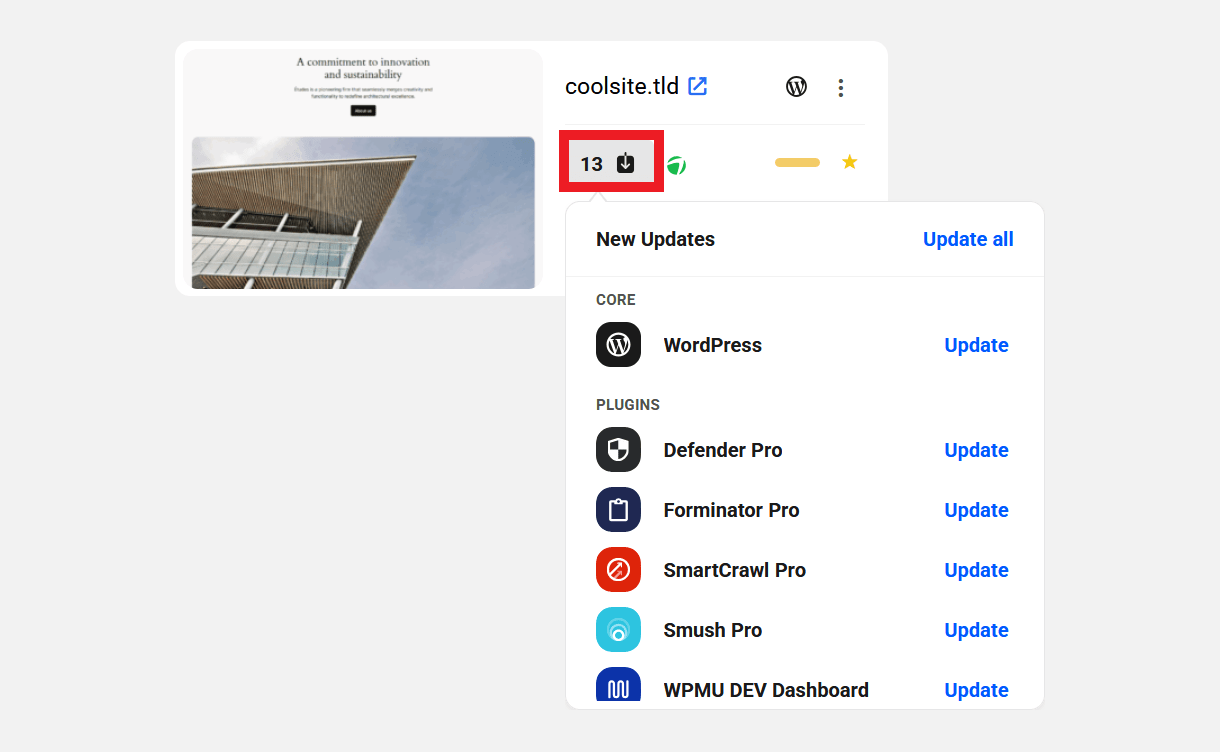
- The Updates icon (dark gray with a down-pointing arrow) displays information about available core/plugin/theme updates for the site (if that icon is absent, that means there are no updates available).
- Hover your mouse over the icon to reveal the available updates for your site. You can update things individually, or update everything on the site with a single click, right from this screen.
- Click the icon to be redirected to the Updates screen for that site in your Hub for more detailed information and features.
Automate

The automate icon is present right next to the updates icon and it provides information about the automate configuration. It appears gray if the feature is not active on the site, green if there are no issues, and red if there are issues needing your attention.
Hover over the automate icon to view the status of the “Backup before update” and “Safe Update Check” options and the schedule at which the next update check will run.
Labels & Favorites

- You’ll see a star icon at the far right if you’ve Favorited that website).
- The label you may have applied to the site (if any) also appears here.
Hosting

- The icon will appear as a green outlined cloud if the site is on WPMU DEV dedicated hosting, as a cloud overlaid with an infinity symbol if the site is on a WPMU DEV unlimited hosting server, or as a gray outlined cloud with a strike through it if hosted by a 3rd-party.
- If your site is hosted by WPMU DEV, hover your mouse over the icon to reveal basic info about the site’s hosting plan and options to manage the site’s cache, files, and database.
- Click on the icon to be redirected to the Hosting overview screen for that site in your Hub.
Note that information about the hosting Type and Plan/Server is not visible to your clients.
Security

- The Security icon provides information about the Defender plugin configuration for the site. It appears gray if the plugin is not active on the site, green if there are no issues, and red if there are issues needing your attention.
- Hover your mouse over the icon to see basic info about the security of the site.
- Click the icon to be redirected to the Security overview screen for that site in your Hub.
Performance

- The Performance icon provides basic info about the Hummingbird plugin configuration for the site. It appears gray if the plugin is not active on the site, green if there are no issues, and red if there are issues needing your attention.
- Hover your mouse over the icon to see basic info about the performance of the site.
- Click the icon to be redirected to the Performance overview screen for that site in your Hub.
SEO

- The SEO icon provides basic info about the SmartCrawl plugin configuration for the site. It appears gray if the plugin is not active on the site, green if there are no issues, and red if there are issues needing your attention.
- Hover your mouse over the icon to see basic info about the SEO score of the site.
- Click the icon to be redirected to the SEO overview screen for that site in your Hub.
Backups

- The Backups icon provides information about the backups for the site.
- If your site is hosted with WPMU DEV, a server stack icon will display to indicate Hosting Backups.
- If your site is hosted with a 3rd-party. the Snapshot plugin icon will display.
- The icon appears gray if the Snapshot plugin is not active on a 3rd-party site, green if backups are available and scheduled, yellow if Snapshot is active but no backups yet, and red if backups are failing or if Snapshot is active on a 3rd-party site but backups are not yet configured.
- Hover your mouse over the icon for info about the latest backup.
- Click the icon to be redirected to the Backups overview screen for that site in your Hub.
Uptime

- The Uptime icon indicates whether your site is currently available or if it is down.
- It appears green if the site is up red if it is down, or gray if the feature is not yet active on the site.
- Hover your mouse over the icon for basic Uptime info.
- Click the icon to be redirected to the Uptime overview screen for that site in your Hub.
Link Checker
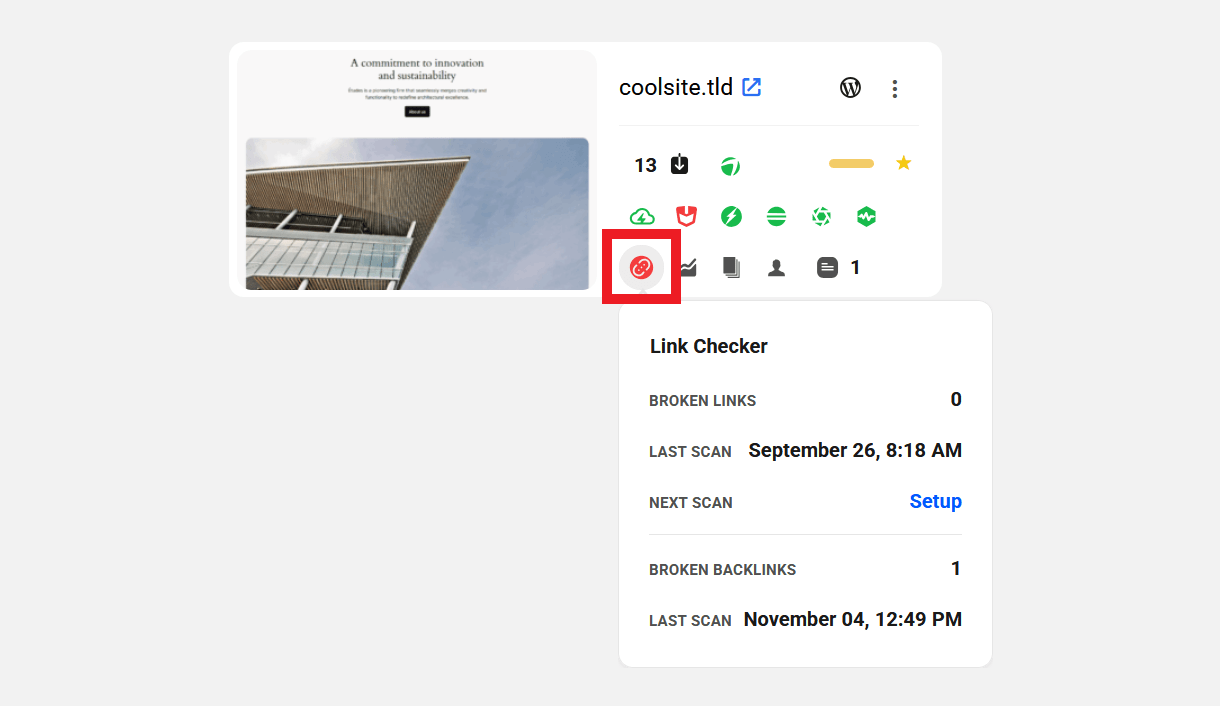
- The Link Checker icon displays basic information about the most recent scans for Broken Links and Backlinks for the site.
- It will appear green if either or both of the features are active on the site and no broken links of either type were found, red if one or more broken links were found in either feature, and gray if neither feature is yet active on the site.
- Hover your mouse over the icon to view basic information about broken links found on your site, if any.
- Click the icon to be redirected to the Link Checker overview screen for that site in your Hub.
Analytics

- The Analytics icon provides basic information about your site’s traffic.
- It will appear green if the feature is active on the site, or gray if it is not.
- Hover your mouse over the icon for basic Analytics information. You can adjust the data displayed to show the last 1, 7, 30 or 90 days right in that info bubble.
- Click the icon to be redirected to the Analytics overview screen for that site in your Hub.
Reports
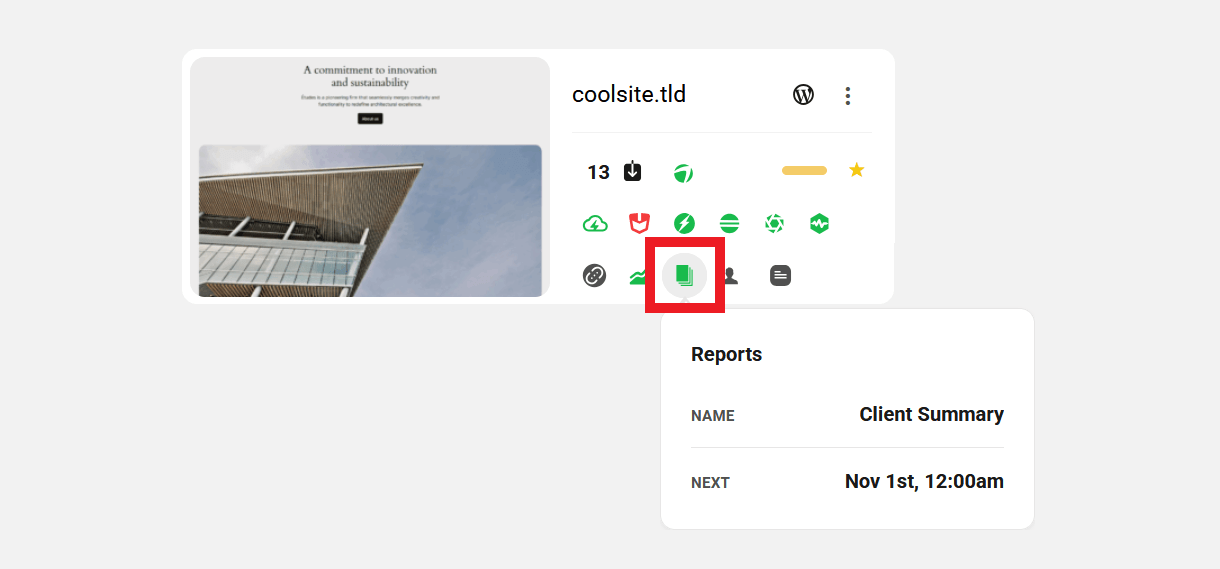
- The Reports icon displays basic information about the next scheduled report for that site.
- It will appear green if there is a scheduled report, or gray if there is none yet.
- Hover your mouse over the icon to view the name and date of the next scheduled report.
- Click on the icon to be redirected to the Reports overview screen for that site in your Hub.
You’ll also notice a couple of features at the top-right of each site in the grid.
Client

- The Client icon displays summary information about the client linked to the site, as well as any billing activity related to the site.
- It will appear green if a client is linked to the site with no payment due or failed invoices, red if there are payment due or failed invoices, and grey if a client is not attached to the site.
- Hover your mouse over the icon to view the name of the Client attached to the site along with the number of subscriptions and outstanding invoices (if any), as well as your MRR & Net Billing amounts.
- Note that the label appears only as Billing for logged-in clients, who would not see their own name appear there, and MRR would be replaced with Monthly Recurring Billing.
- Click on the icon to be redirected to the Billing overview screen for that site in your Hub.
Notes

- The Notes icon gives you easy access to create & manage secure notes for the site. The number next to the icon indicates how many notes have been added. See Site Notes in our Managing a Site in the Hub documentation for more information.
- Team members and clients can be given controlled access to site notes if needed. See Site Notes Module in our Team & Client Role Customization documentation for details.
WP-Admin
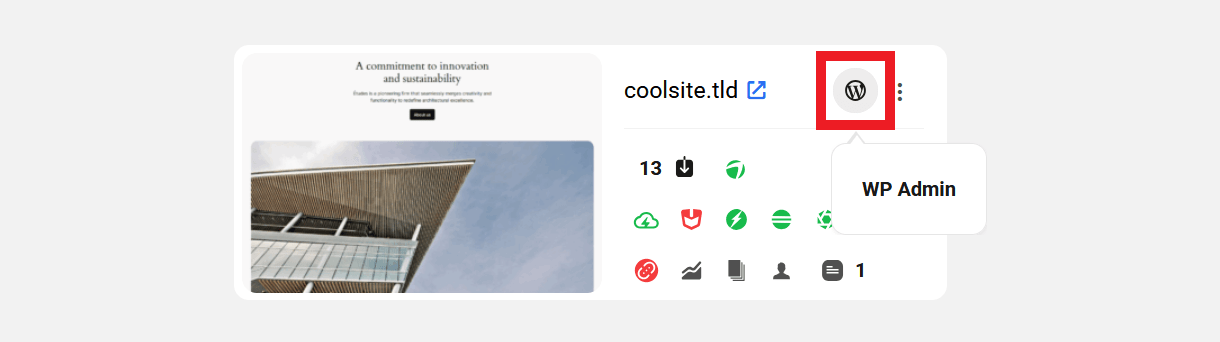
- Click the WordPress logo to be redirected to the wp-admin URL of that site in a new tab.
- If you have also enabled the Single Sign-on feature in the WPMU DEV Dashboard plugin on that site, clicking this link will automatically log you into the site’s wp-admin.
IMPORTANT
If you have granted access to the WPMU DEV Dashboard plugin on a site to additional admin users there, and one of those admin users enables the SSO Login feature from the Dashboard plugin, anyone who accesses the site via SSO will be logged-in as that additional admin instead of you.
This can be especially important to know if you have enabled the SSO Login capability in any Team Member custom role.
List View
Click the List view icon to switch to a List view of your websites. The List view displays your sites without the thumbnail and displays the color-coded icons for available actions.
This view gives you a quicker overall view of your connected websites.
Whichever view was used on your last visit will be used next time you log on to the WPMU DEV Hub.

3.9 Export Site List
Copy chapter anchor to clipboardThe Export Site List option can be found next to the List/Grid View option in the horizontal navigation menu on the My Sites screen.

Clicking on this option will generate a CSV file containing data of all the sites in your Hub (WPMU DEV dedicated & unlimited hosting, and 3rd-party hosted). The columns of site data will be sorted as follows:
- Site ID – This is the number that identifies the site in your Hub, and appears in the browser address bar when viewing the site there. For example:
https://wpmudev.com/hub2/site/1234567 - Site Title – The site URL or the custom title you may have given it in the Site Settings.
- Site Label – The custom label you may have assigned to the site in your Hub.
- WP Version – The WordPress version currently running on the site.
- PHP Version – The PHP version currently running on the site.
- Favorite – This indicates whether you have favorited the site or not in your Hub.
- WPMU DEV Hosting – This indicates whether the site is hosted by WPMU DEV or not.
- Hosting Type – Applies only to WPMU DEV hosted sites. This indicates the hosting type: dedicated or unlimited.
- Status – Applies only to WPMU DEV hosted sites. This indicates the status of the site: active or suspended.
- Server IP – The IP address of the server.
- Primary Domain – If hosted by WPMU DEV, this indicates the primary domain assigned to the site. If hosted by a 3rd-party, this is the domain you entered when connecting the site to your Hub.
- CNAME – Applies only to WPMU DEV hosted sites. This is the tempurl.host name of the site.
- Hosting Plan – Applies only to WPMU DEV hosted sites. This indicates the current hosting plan of the dedicated site or unlimited server.
- Hosting Region – Applies only to WPMU DEV hosted sites. The region where the dedicated site or unlimited server is hosted.
The exported file will have the following name format: My Sites – {current date}.csv
Note that this option is available only to the Hub account owner and team members who have the required access. This option is not available to your clients.
If the site list export is generated by the Hub account owner, it will be automatically sent to the email associated with the account. If a team member exports the site list, the email will be sent only to that team member, not the account owner.
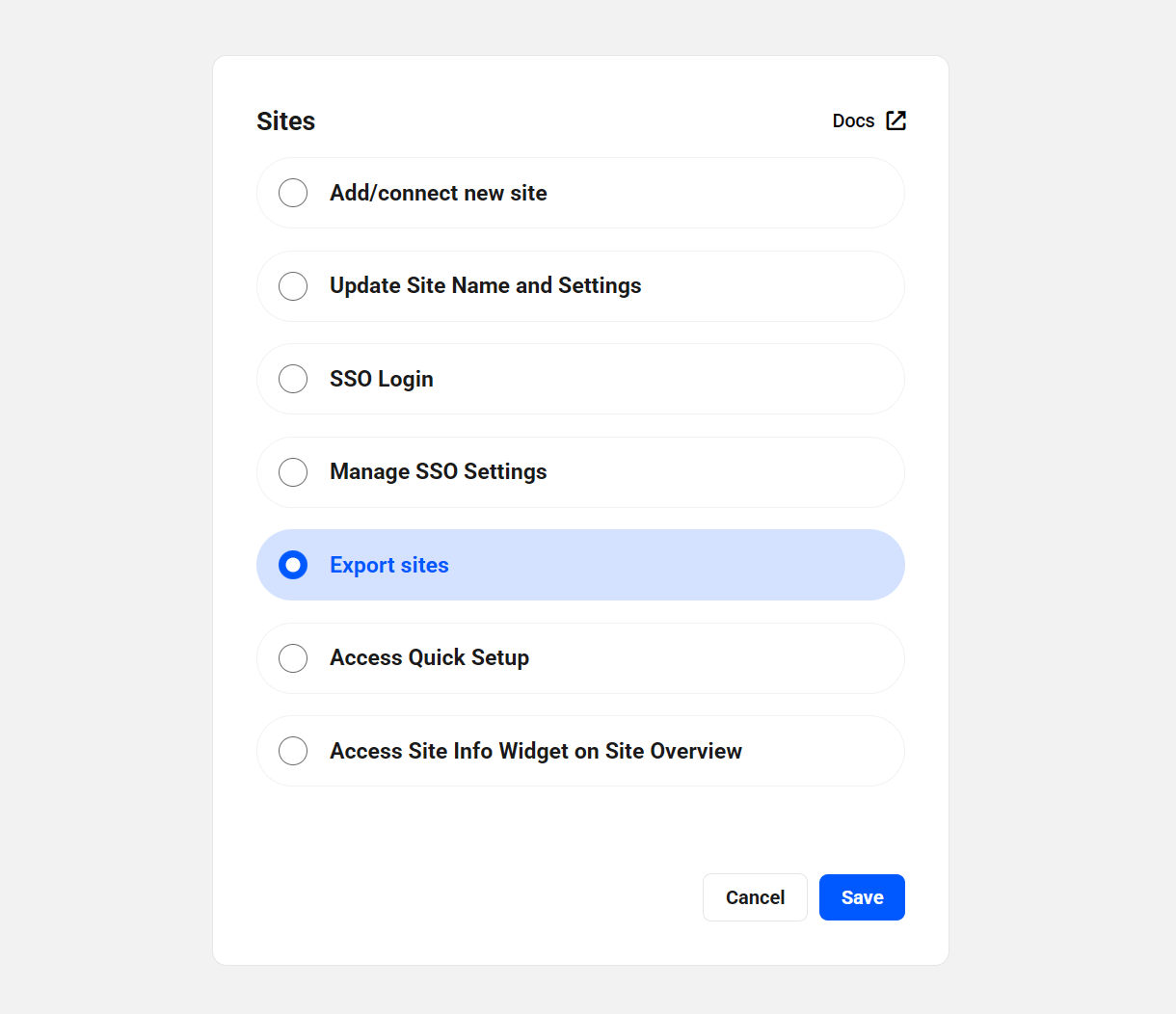
You can grant your team members access to this feature by creating a custom role and enabling access to Export sites in the Sites Module.
3.10 Favoriting a Website
Copy chapter anchor to clipboardThe Favorites feature allows you to group sites by priority, high activity, or any other criteria you deem important.
When hovering over a site in both the Grid and List view an empty star icon will appear. In Grid view, it is in the bottom left corner. In the List view, it is next to the domain name.


Clicking the star icon adds the site to your favorites list. If a site is added to your favorites list it will be marked with a gold star. To remove your site from the favorites List click the gold star and the site will be removed.
As seen in the Sort feature detailed in the My Sites chapter above, sites that have been favorited can be pinned to the top of your sites List or Grid view so they’re easy to spot at a glance.
3.11 Site Settings
Copy chapter anchor to clipboardThe Site Settings screen enables you to adjust a few options related to the site you’re viewing in your Hub.
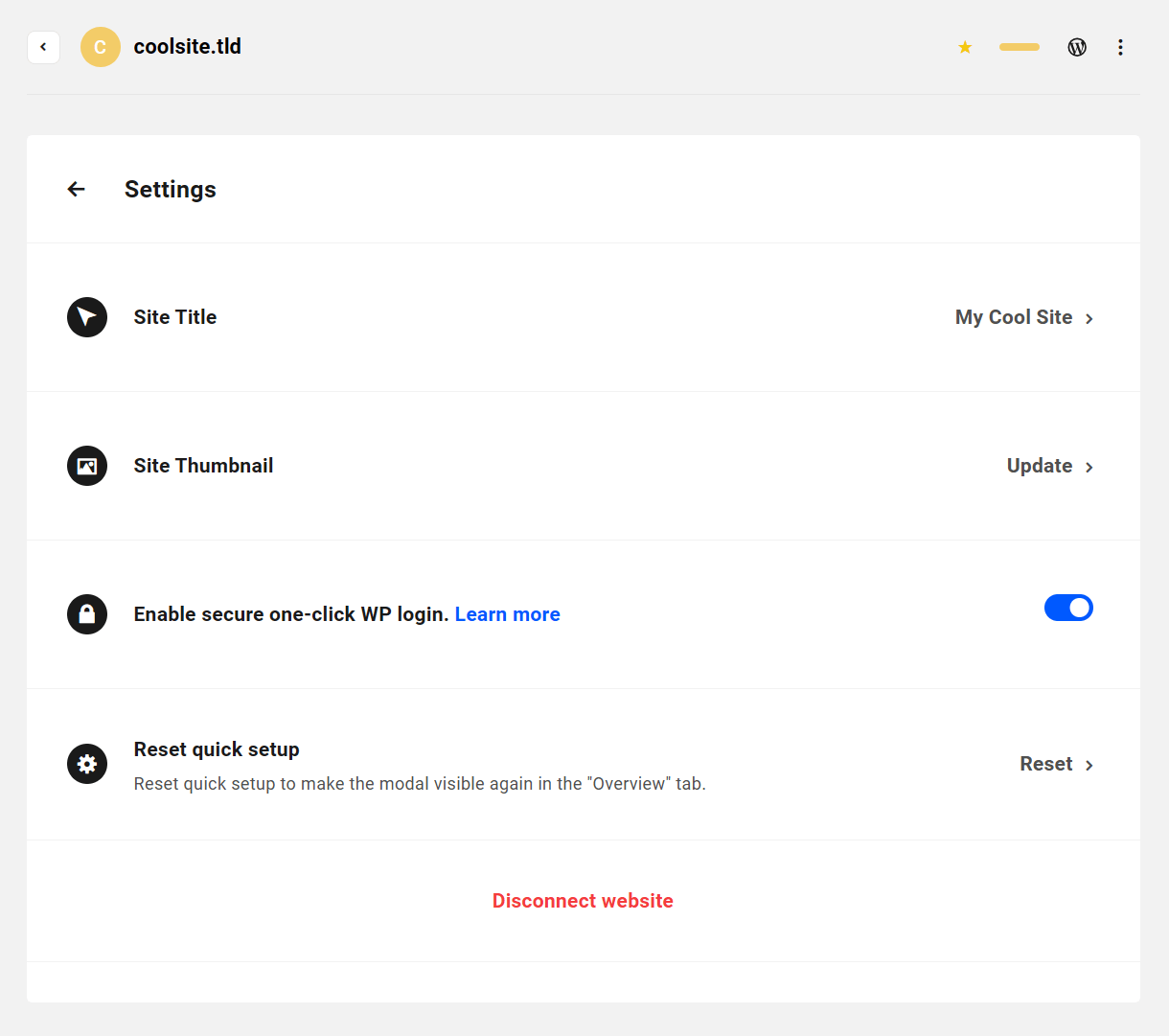
- Site Title – Customize the title that appears for the site in your Hub.
- Site Thumbnail – Allows you to refresh the auto-generated site thumbnail if you make changes to the homepage or upload a custom thumbnail.
- Enable secure one-click WP login – Allows you to one-click access to your site’s wp-admin without having to login every time.
- Reset quick setup – Appears for 3rd-party hosted sites only. If you had previously dismissed the Quick Setup wizard for the site, click this option to get it back again.
The site settings can be accessed from the Site Options menu.
3.12 Get Support
Copy chapter anchor to clipboardIf you still have questions or need assistance after reading this document, please don’t hesitate to contact our support superheroes using the available options under the Support tab in your Hub or via the Support tab in your WPMU DEV Dashboard.

